If you are reading this, your heart probably skipped a beat a few minutes ago.
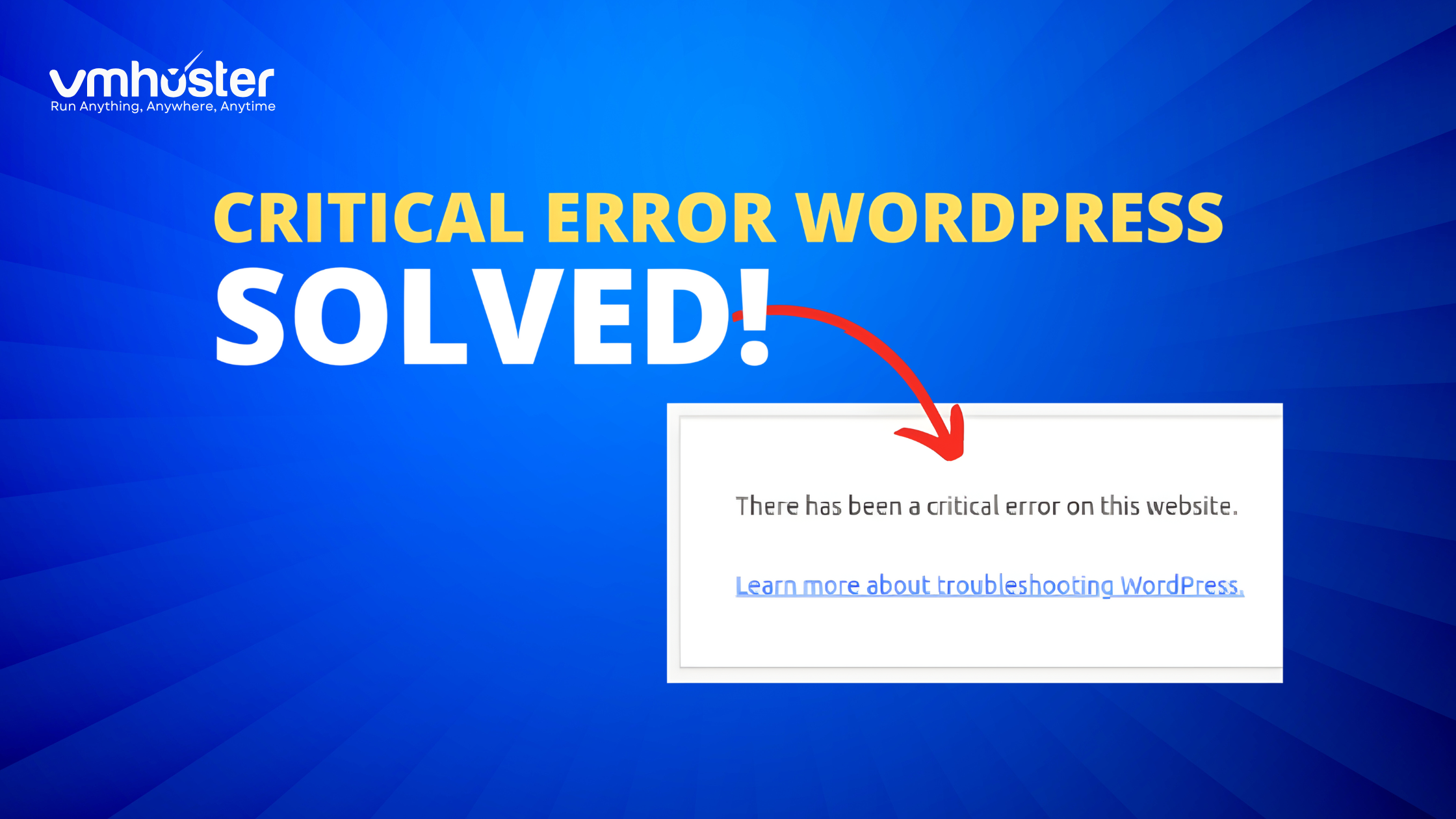
You were updating a plugin, tweaking a theme, or maybe just logging in, and suddenly—Boom. The screen went white, and you were greeted by the infamous message: “Wordpress There Has Been a Critical Error on This Website.”
I’ve been there. I remember the first time I saw this error on a client’s live site. It was 11 PM, I had just pushed a “minor” code update, and suddenly the entire site was gone. My palms got sweaty, and I instantly regretted not taking a backup five minutes earlier.
But here is the good news: This error is actually helpful.
In the old days of WordPress, you would just get a “White Screen of Death” with zero information. Now, WordPress catches the crash and pauses everything to stop further damage. It’s not a death sentence; it’s a safety net.
In this guide, I’m going to walk you through exactly how to fix this, just like I would if we were sitting side-by-side debugging it together.
First: Check Your Email (The “Easy” Way Out)
Before we start digging into files and servers, check your inbox.
When this error happens, WordPress usually sends an automated email to the site administrator address. The subject line will be something like “Your Site is Experiencing a Technical Issue.”
Inside that email, you will often find:
- The specific cause: (e.g., “Caught error in plugin: Elementor”).
- A Recovery Mode link: This link lets you log in to your dashboard even if the site is broken, allowing you to deactivate the bad plugin safely.
Pro Tip: If you didn’t get the email, check your Spam folder. If you still can’t find it (or if your site doesn’t send emails reliably), don’t worry. We’ll do it the manual way below.
Step 1: Turn on “Debug Mode” (Becoming the Detective)
If you don’t know what is breaking your site, you can’t fix it. We need to force WordPress to tell us the secret it’s hiding.
To do this, we need to edit a file called wp-config.php.
- Log in to your VMHoster control panel or use an FTP client (like FileZilla).
- Navigate to your website’s root folder (usually public_html).
- Find wp-config.php and edit it.
- Look for the line that says: define( ‘WP_DEBUG’, false );
- Change it to look like this:
PHP
define( ‘WP_DEBUG’, true );
define( ‘WP_DEBUG_LOG’, true );
define( ‘WP_DEBUG_DISPLAY’, false );
Why did we do this? By setting WP_DEBUG_LOG to true, WordPress will now write every error to a file called debug.log inside your /wp-content/ folder. Open that file, and you will likely see the culprit. It usually looks like: Fatal error: … in /home/user/public_html/wp-content/plugins/bad-plugin/index.php
Step 2: The Usual Suspects (Plugin Conflicts)
In my experience, 90% of critical errors are caused by a plugin update gone wrong or two plugins fighting for resources.
If you can’t access your dashboard, here is the manual fix:
- Go back to your File Manager/FTP.
- Navigate to /wp-content/.
- Find the plugins folder.
- Rename it to something like plugins_old.
Now, try reloading your website.
- If the site comes back: You know one of your plugins is the problem.
- The Fix: Rename the folder back to plugins. Go inside it and rename individual plugin folders (e.g., woocommerce_old) one by one until the site breaks again. The last one you touched is the villain.
Step 3: Increase Your PHP Memory Limit
Sometimes, your site isn’t “broken”—it’s just out of breath.
If you are running a heavy theme or a lot of plugins on a basic hosting plan, your site might be hitting its memory ceiling. It tries to load, runs out of RAM, and crashes.
How to fix it: Go back to your wp-config.php file (the same one we edited earlier) and add this line just before the “That’s all, stop editing” comment:
PHP
define( ‘WP_MEMORY_LIMIT’, ‘256M’ );
If you are on a robust VPS Hosting plan with VMHoster, you likely have plenty of resources, but WordPress limits itself by default. This line tells WordPress, “It’s okay to use more power.”
Step 4: Theme Issues (The “Face” of the Problem)
If plugins aren’t the issue, your theme might be. This often happens if you updated your PHP version but your theme hasn’t been updated in years.
- Navigate to /wp-content/themes/.
- Find your active theme folder (e.g., astra or divi).
- Rename it to astra_old.
WordPress will automatically search for a default theme (like Twenty Twenty-Four) to use instead. If your site loads, you know your theme is corrupted or incompatible.
Step 5: PHP Version Mismatch
Real-world example: A friend of mine moved his site to a new server that was running PHP 8.2, but his site was built on an old custom plugin from 2018. The site instantly crashed.
Old code often doesn’t understand new PHP languages.
The Fix: Log in to your hosting control panel. Look for “PHP Manager” or “MultiPHP Manager.”
- Try downgrading your PHP version one step (e.g., from 8.2 to 8.0 or 7.4).
- Refresh your site.
If this works, it’s a temporary band-aid. You need to update your code eventually, as old PHP versions are a security risk.
How to Prevent This from Happening Again
Fixing the error is great, but sleeping soundly at night is better. Here is how you stop this from ruining your day in the future:
1. Reliable Backups are Non-Negotiable
If you had a backup from 1 hour ago, this entire blog post would be irrelevant. You would just hit “Restore” and be done. Ensure your hosting provider offers daily, automated backups. At VMHoster, we emphasize the importance of off-site backup services so your data is safe even if the server melts down.
2. Use a Staging Site
Never “test” updates on your live business site. If you are on a Managed Cloud or VPS, set up a staging environment. It’s a clone of your site where you can break things safely. If an update causes a critical error there, nobody sees it but you.
3. Choose the Right Hosting Environment
“Shared hosting” is like living in a dormitory—if your neighbor plays loud music (uses too much CPU), you can’t sleep. If your site is growing, critical errors often signal that you’ve outgrown your space. Moving to a Dedicated Server or a scalable Cloud VPS ensures your site has the dedicated resources it needs to handle heavy plugins and traffic spikes without crashing.
Still Stuck?
If you’ve tried renaming plugins, increasing memory, and debugging, and you still see that critical error, it might be a deeper core file corruption or a database issue.
Don’t struggle alone. If you are a VMHoster client, our support team deals with WordPress critical errors daily. Open a ticket, and we can check the server logs that you might not have access to.