
When I first started managing IT infrastructure for a mid-sized company back in 2019, I remember sitting in a meeting where our CTO threw out the question: “Should we go with SAN or NAS for our new storage setup?” Half the room nodded knowingly, while the other half (including me) tried not to look completely lost.
If you’re in that second group right now, don’t worry—you’re definitely not alone. The difference between SAN and NAS storage confuses a lot of people, even those who’ve been in IT for years. But here’s the thing: choosing the wrong storage solution can cost your business thousands of dollars and cause serious performance headaches down the road.
What Actually Is NAS Storage? (And Why You’ve Probably Used It Without Knowing)
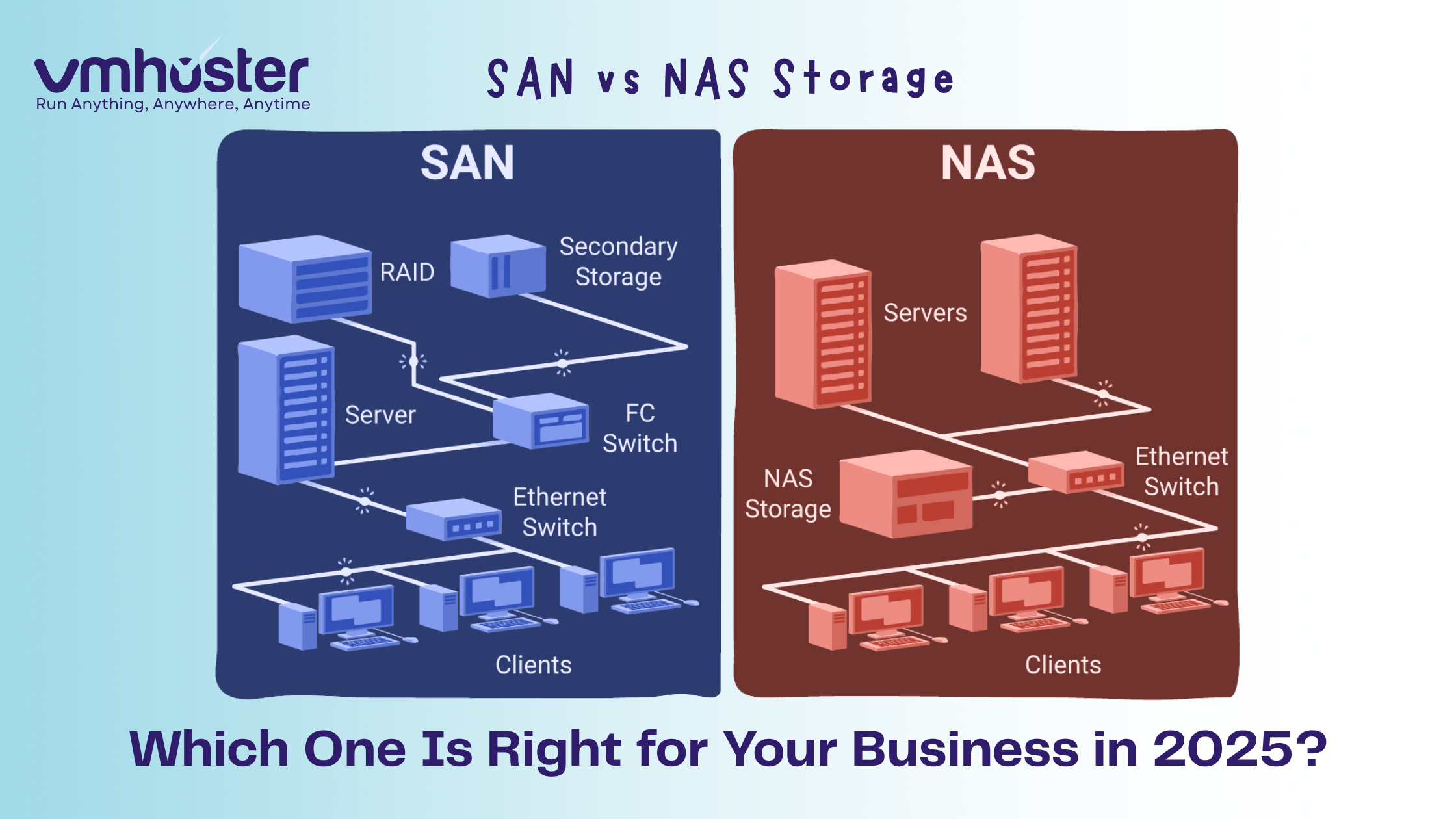
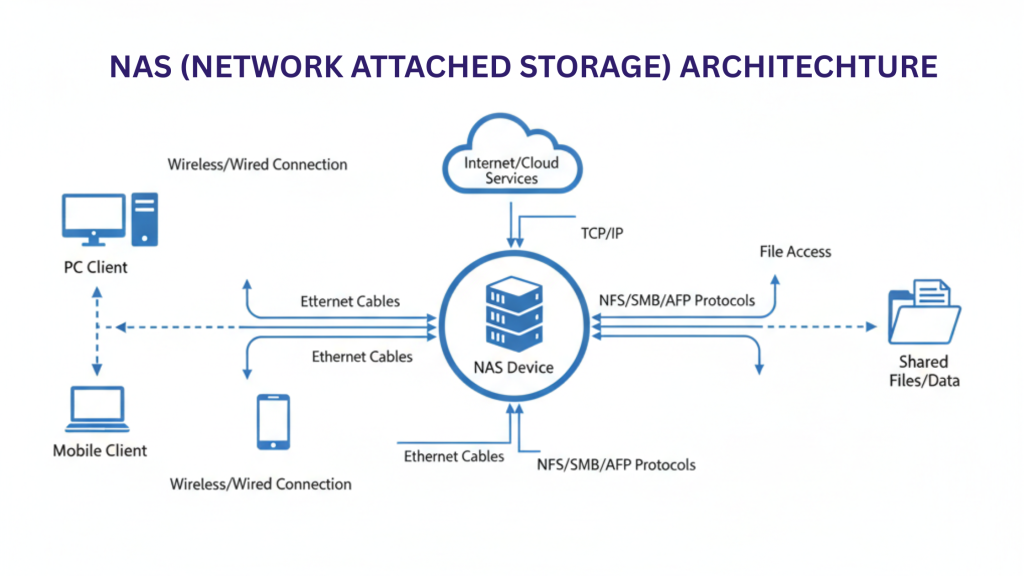
NAS stands for Network Attached Storage, and honestly, it’s the more straightforward of the two options. Think of NAS as a smart hard drive that connects directly to your network. It’s like having a dedicated file server that everyone in your office can access to store and retrieve files.
Here’s what makes NAS special:
- File-level storage: NAS operates at the file level, meaning it manages complete files rather than raw data blocks
- Simple setup: You can literally plug it into your network switch, configure some settings, and you’re good to go
- Built-in operating system: NAS devices come with their own OS (often a Linux variant) that handles all the file management
- Multiple protocols: Supports SMB/CIFS (for Windows), NFS (for Unix/Linux), and even AFP (for Mac users)
I remember setting up my first NAS device for a small design agency. We needed something where their creative team could dump massive Photoshop and video files without clogging up individual computers. A Synology NAS box did the trick in about an hour—no specialized IT degree required.
So What’s SAN Storage Then?
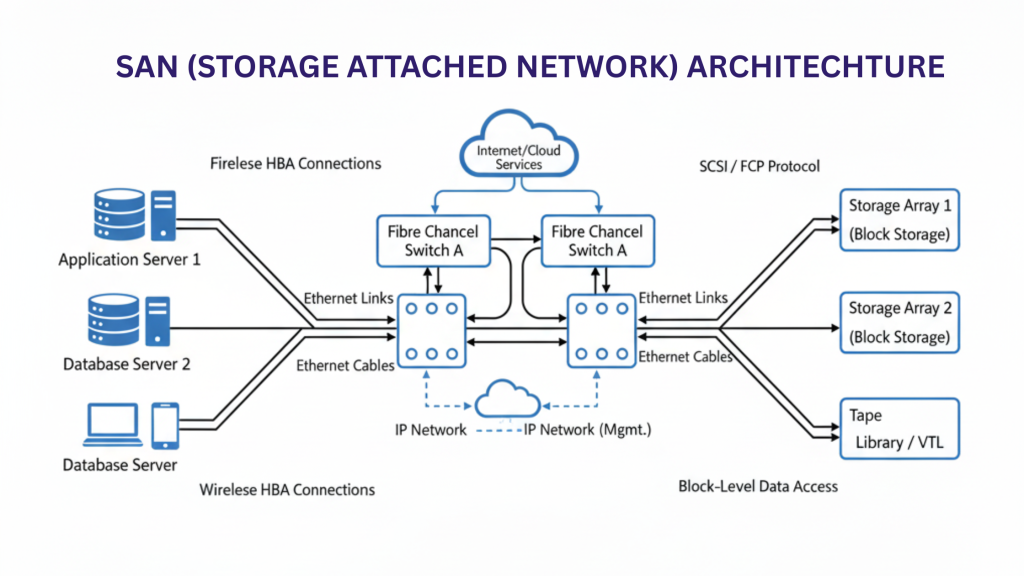
SAN stands for Storage Area Network, and it’s a completely different beast. While NAS is like a smart external hard drive, SAN is more like… well, imagine if you could trick your computer into thinking a remote storage device is actually a local hard drive attached directly to your machine. That’s essentially what SAN does.
Here’s what sets SAN apart:
- Block-level storage: SAN works with raw data blocks, not complete files
- Dedicated network: SAN creates a separate, high-speed network just for storage traffic (usually Fibre Channel or iSCSI)
- Appears as local storage: To your server, SAN volumes look like locally attached disks
- Enterprise-grade performance: We’re talking sub-millisecond latency here
The first time I worked with a SAN setup was at a financial services company running critical database servers. Their SQL databases needed lightning-fast disk access, and any lag would literally cost them money. SAN was the only option that made sense.
The Core Difference Between NAS and SAN Storage
Alright, let’s get to the heart of the matter. The fundamental difference between SAN and NAS comes down to how they serve data:
NAS: The File Server Approach
NAS serves complete files over your regular Ethernet network. When you request a document from NAS:
- Your computer asks the NAS for “Q4_Report.xlsx”
- NAS finds the file in its file system
- NAS sends the complete file over the network
- Your computer receives and opens it
It’s like asking a librarian for a specific book—you get the whole book, not individual pages.
SAN: The Block Storage Approach
SAN serves raw storage blocks over a dedicated storage network. When your server needs data from SAN:
- Your server OS requests specific data blocks (like block 5000-5100)
- SAN delivers those exact blocks
- Your server’s file system assembles those blocks into usable data
- The application accesses the data as if it’s on a local disk
This is more like having your own section of a warehouse where you can arrange boxes (blocks) however you want.

SAN vs NAS: The Performance Showdown
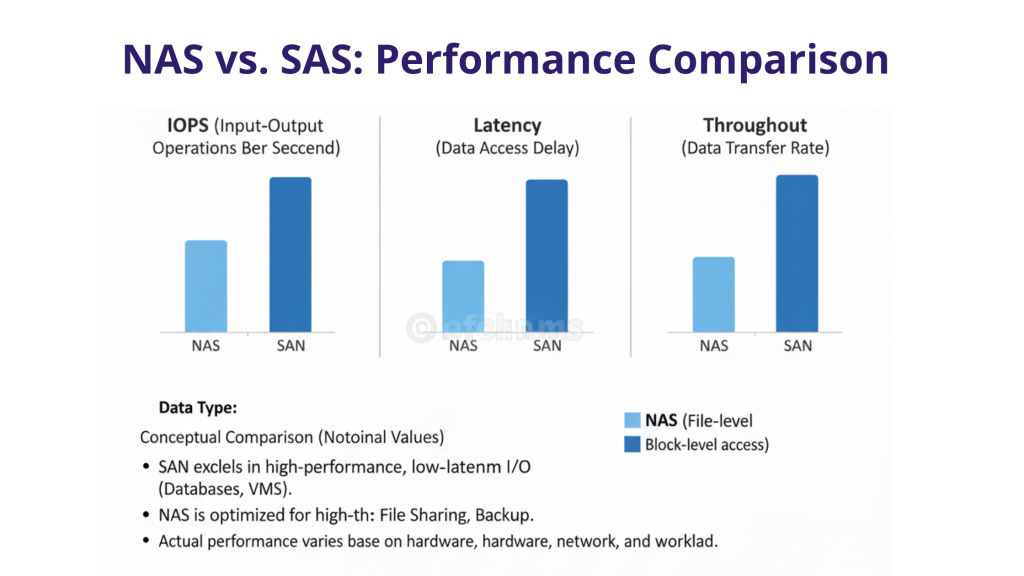
Let’s talk about speed, because that’s usually what tips the scales for most businesses.
When NAS Performance Shines
NAS can actually be plenty fast for most everyday uses:
- File sharing: Transferring documents, spreadsheets, presentations—NAS handles this beautifully
- Media streaming: Got a Plex server or need to stream video files? NAS works great
- Backup operations: Nightly backups to NAS are typically more than fast enough
- SMB workloads: For small to medium businesses, modern NAS with 10GbE can hit speeds of 1GB/s+
I’ve seen design teams work with 500MB Photoshop files directly off NAS without any complaints. As long as your network infrastructure is solid (gigabit ethernet minimum, 10GbE preferred), NAS performs admirably.
When You Absolutely Need SAN Speed
SAN enters the chat when performance becomes mission-critical:
- Database servers: SQL Server, Oracle, PostgreSQL running heavy transaction loads
- Virtualization: VMware, Hyper-V, or Proxmox hosting dozens of VMs
- High-frequency trading: Where milliseconds literally equal money
- Large-scale video editing: Think 8K raw footage being edited by multiple users simultaneously
One client I worked with ran a virtualization cluster with 50+ virtual machines. They initially tried using NAS for VM storage and experienced random performance hiccups during peak hours. After migrating to an iSCSI SAN, those issues vanished completely. The difference was night and day.
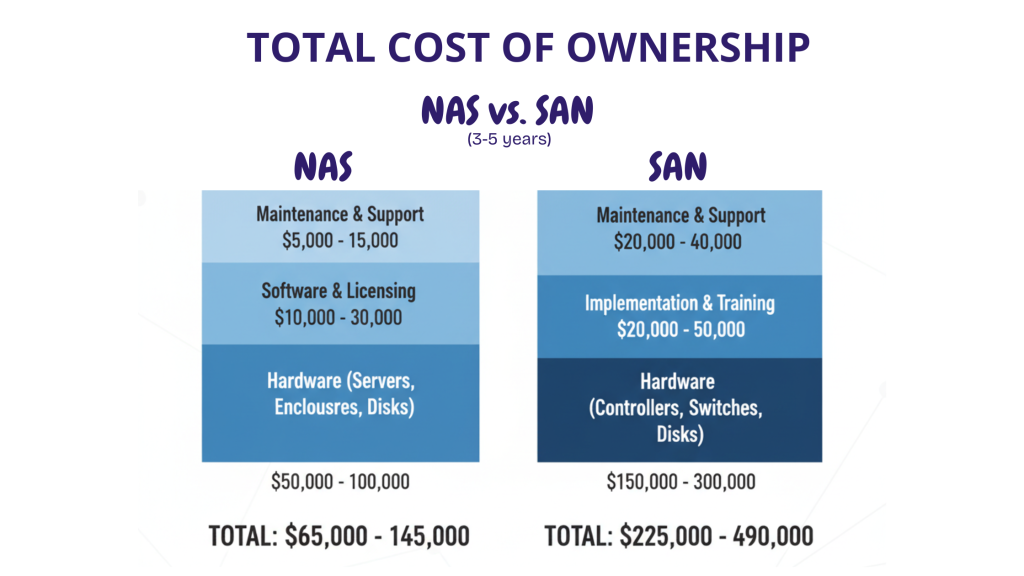
Cost Comparison: NAS vs SAN Storage
Let’s be real—budget matters. And this is where things get interesting.
NAS: The Budget-Friendly Option
NAS is generally much easier on the wallet:
- Entry-level NAS: $300-$1,000 for small office (2-4 bay devices like Synology DS920+)
- Mid-range NAS: $2,000-$10,000 for growing businesses (8-12 bay rackmount units)
- Enterprise NAS: $15,000-$50,000+ for large deployments
You’re mostly paying for the NAS device itself and the hard drives. No specialized network equipment required—it works on your existing Ethernet infrastructure.
SAN: The Premium Investment
SAN requires deeper pockets:
- Entry-level SAN: $10,000-$30,000 (iSCSI-based solutions)
- Mid-range SAN: $50,000-$150,000 (Fibre Channel with redundancy)
- Enterprise SAN: $200,000-$1,000,000+ (high-availability, multi-site setups)
But wait, there’s more! SAN also requires:
- Fibre Channel switches: $5,000-$50,000+ per switch
- HBA cards: $500-$2,000 per server
- Specialized cables: $50-$300 each (and you’ll need many)
- Expert implementation: SAN admins don’t come cheap
I’ve seen companies get sticker shock when they realize the “SAN solution” they budgeted $50K for actually costs $150K once you factor in all the infrastructure pieces.
SAN and NAS Difference: Use Cases That Matter
Let me share some real-world scenarios where I’ve seen businesses make the right (and wrong) choice.
When NAS Is Your Best Bet
Scenario 1: Small Business File Sharing A 25-person marketing agency needed centralized storage for project files, client assets, and backups. They went with a Synology 8-bay NAS ($2,500 + drives). Three years later, they’re still happy with the decision.
Scenario 2: Media Production House A video production company works with 4K footage daily. Their QNAP NAS with 10GbE networking handles multiple editors accessing footage simultaneously without breaking a sweat.
Scenario 3: Developer Team Collaboration A software development company uses NAS for Git repositories, CI/CD artifacts, and development environment backups. The simplicity and ease of management won them over.
When SAN Is Non-Negotiable
Scenario 1: Virtualization Cluster A healthcare provider runs a VMware cluster hosting 80+ virtual machines, including their EMR system. They need the IOPS and low latency that only SAN can provide. Downtime could affect patient care.
Scenario 2: Financial Trading Platform A trading firm processes thousands of transactions per second. Their SQL Server databases run on SAN with sub-millisecond response times. In their world, even a 10ms delay is unacceptable.
Scenario 3: Large E-commerce Site An online retailer processing 10,000+ orders daily needs their database and application servers to have instant access to storage. Their Fibre Channel SAN ensures zero bottlenecks during Black Friday.
The Middle Ground: iSCSI SAN
Here’s something I wish someone had told me earlier in my career: you don’t always have to choose between expensive Fibre Channel SAN and simple NAS. There’s a middle option called iSCSI SAN.
iSCSI (Internet Small Computer Systems Interface) runs SAN protocols over standard Ethernet networking. This means:
- Lower cost: No Fibre Channel switches or HBAs required
- SAN benefits: You still get block-level storage
- Familiar network: Uses your existing Ethernet infrastructure
- Easier management: IT teams already know Ethernet
Many modern NAS devices can actually serve iSCSI volumes, blurring the lines between NAS and SAN. For example, Synology and QNAP NAS units support iSCSI targets, giving you SAN functionality at NAS prices.
I’ve deployed iSCSI SAN solutions for several mid-sized companies running VMware. It’s like getting 80% of SAN benefits at 30% of the cost. The performance won’t match dedicated Fibre Channel, but for many workloads, it’s more than adequate.
NAS vs SAN: Scalability and Future Growth
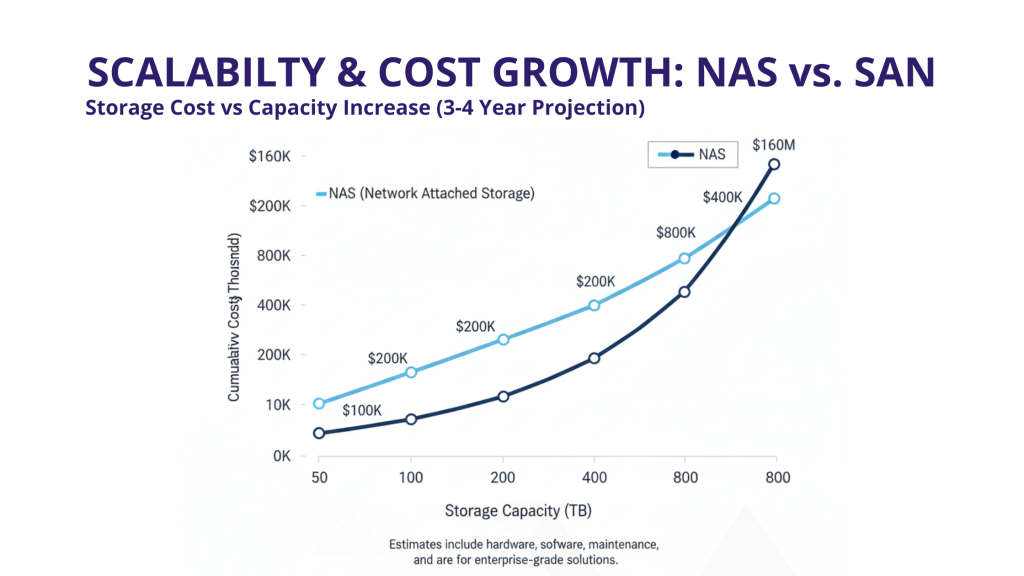
One thing I’ve learned the hard way: always think about where your storage needs will be in 3-5 years, not just today.
Scaling NAS
NAS typically scales by:
- Adding larger drives: Swap out 4TB drives for 8TB or 12TB
- Expansion units: Connect additional disk shelves
- Upgrading the unit: Replace with a larger model
- Adding more NAS devices: Deploy multiple NAS boxes (though this can get messy management-wise)
The challenge? Once you outgrow your NAS, migration can be painful. I’ve seen companies struggle with moving 50TB+ of data from an old NAS to a new one while keeping everything accessible.
Scaling SAN
SAN is built for growth:
- Add storage arrays: Expand the SAN fabric with more arrays
- Non-disruptive expansion: Add capacity without taking anything offline
- Performance scaling: Add more controllers, switches, or SSDs
- Multi-site replication: Extend SAN across data centers
The downside? Scaling SAN also scales the cost. Each expansion can be a five-figure investment.
Management and Complexity: The Hidden Factor
Let’s talk about something vendors rarely emphasize: how much time you’ll spend managing your storage.
NAS Management: Pretty Straightforward
Most NAS devices have web-based interfaces that are surprisingly user-friendly. Even if you’re not a storage expert, you can:
- Create shared folders in minutes
- Set up user permissions
- Configure RAID arrays
- Schedule backups
- Monitor health status
I’ve trained non-technical office managers to handle basic NAS tasks. The learning curve is gentle.
SAN Management: Buckle Up
Managing SAN is a different ballgame:
- Specialized knowledge required: You need to understand zoning, LUN masking, WWPNs, multipathing…
- More moving parts: Storage arrays, switches, HBAs, multiple layers to troubleshoot
- Certification recommended: Most SAN admins have vendor-specific training
- Planning overhead: Changes require careful planning to avoid disruptions
Unless you have dedicated storage admin staff (or outsource to a managed service provider), the management complexity of SAN can be overwhelming for small IT teams.
Reliability and Redundancy: What Happens When Things Break?
Because let’s be honest—hardware fails. The question is: how prepared are you?
NAS Reliability
Modern NAS devices are actually quite reliable:
- RAID protection: Built-in RAID 1, 5, 6, or 10 protects against drive failures
- Dual power supplies: Available on enterprise models
- Hot-swappable drives: Replace failed drives without shutting down
- Snapshot capabilities: Point-in-time recovery if files get corrupted
The weak link? NAS is often a single point of failure. If the NAS device itself dies (motherboard failure, controller issue), you’re down until it’s fixed or replaced.
I recommend always having a backup strategy for your NAS. We typically set up NAS-to-NAS replication or cloud backups for clients who depend on their NAS for business-critical data.
SAN Reliability
SAN is typically designed with redundancy at every level:
- Redundant controllers: If one fails, the other takes over seamlessly
- Redundant paths: Multiple connections ensure no single point of failure
- Redundant power: Dual PSUs on everything
- Hot-swappable everything: Controllers, drives, power supplies, even switches
High-availability SAN configurations can survive multiple component failures without any downtime. This is why hospitals, banks, and other mission-critical environments choose SAN.
Real Talk: Common Mistakes I’ve Seen
After years in this field, here are the mistakes that keep happening:
Mistake #1: Buying SAN When NAS Would Work A 50-person company spent $120K on a SAN setup because their IT consultant convinced them they “needed enterprise storage.” They’re using it for file shares and light database work. A $5K NAS would’ve been plenty.
Mistake #2: Choosing NAS for Heavy VM Workloads A growing SaaS company tried running their production VM cluster on NAS. Random performance issues plagued them until they bit the bullet and switched to SAN.
Mistake #3: Ignoring Network Infrastructure Someone buys a fancy 10GbE NAS but connects it through old gigabit switches. The bottleneck nullifies the NAS speed advantage.
Mistake #4: Not Planning for Growth Buying a 4-bay NAS when you’re already using 3 bays is asking for trouble. Always overestimate your storage growth.
Mistake #5: Forgetting About Backups “Our SAN has RAID, we’re protected!” RAID is not a backup. I’ve seen RAID controllers fail and corrupt entire arrays. Always backup your critical data.
The Hybrid Approach: Can You Have Both?
Plot twist: you don’t have to choose just one!
Many organizations run hybrid storage environments:
- SAN for performance-critical workloads: Databases, VMs, transaction-heavy applications
- NAS for general file storage: Documents, archives, media files, backups
This approach lets you optimize costs while ensuring critical systems get the performance they need. One of my favorite implementations was at a healthcare clinic:
- Patient records database: SAN (fast, reliable)
- Medical imaging archive: NAS (huge capacity, acceptable speed)
- Office files: NAS (simple, cost-effective)
- VM infrastructure: SAN (performance-critical)
They saved probably $50K by not putting everything on SAN while still maintaining excellent performance where it mattered.
Future Trends: Where Storage Is Heading
The storage landscape keeps evolving. Here’s what I’m watching:
Cloud is Changing Everything
Many companies are now choosing between “SAN vs NAS” and “on-premise vs cloud.” AWS EBS (basically cloud SAN) and services like AWS FSx (managed NAS) are becoming compelling alternatives, especially for businesses not wanting to manage hardware.
NVMe Over Fabrics
This technology brings SSD-level performance to network storage, potentially blurring the performance gap between NAS and SAN even further.
Software-Defined Storage
Solutions like Ceph, GlusterFS, and Microsoft Storage Spaces Direct let you build storage clusters from commodity hardware, challenging traditional SAN approaches.
AI and Predictive Maintenance
Modern storage systems use AI to predict failures and optimize performance automatically. The days of reactive storage management are fading.
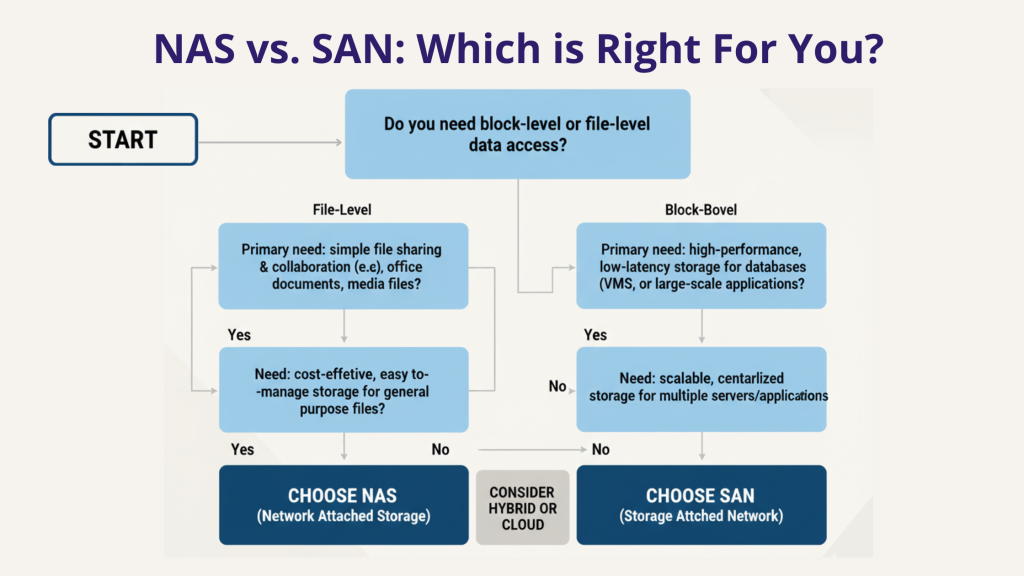
So… SAN vs NAS: Which Should You Choose?
After all this, here’s my honest recommendation framework:
Choose NAS if you:
- Have a budget under $20K for storage
- Need simple file sharing for teams
- Don’t have dedicated storage admin staff
- Run SMB workloads (small to medium business)
- Can tolerate brief downtime for maintenance
- Need easy setup and management
Choose SAN if you:
- Run mission-critical databases or applications
- Have high-performance VM environments
- Need sub-millisecond storage latency
- Require 99.99%+ uptime
- Have budget for $50K+ infrastructure investment
- Have (or can hire) specialized storage expertise
Consider iSCSI SAN if you:
- Need better performance than NAS
- Can’t justify Fibre Channel SAN costs
- Run moderate VM workloads
- Want block storage benefits on Ethernet
Look at cloud storage if you:
- Want to avoid hardware management
- Need flexible, pay-as-you-grow pricing
- Can tolerate cloud egress costs
- Are comfortable with cloud security models
Wrapping Up
The SAN vs NAS debate isn’t about one being universally better than the other—it’s about matching the right tool to your specific needs. I’ve seen small businesses thrive with basic NAS setups and enterprises struggle with over-complicated SAN implementations they didn’t really need.
My advice? Start with a clear understanding of:
- Your actual performance requirements (not just what sounds impressive)
- Your realistic budget (including hidden costs)
- Your team’s technical capabilities
- Your growth projections for the next 3-5 years
And remember: the best storage solution is the one that reliably serves your data without breaking your budget or giving your IT team headaches.
If you’re still unsure, consider consulting with a storage specialist (not a vendor trying to sell you something) who can assess your specific environment. Sometimes that consultation fee saves you from a very expensive mistake.
Helpful Resources and Further Reading
Technical Documentation:
- VMware Storage Best Practices – Official VMware storage guidance
- NAS vs SAN Performance Benchmarks – Independent storage testing
Internal Links (VMHoster):
- Cloud Storage Solutions
- Dedicated Server Hosting
- VMware Hosting Services
- Storage Solution Consultation
Community Forums:
- r/homelab – Great for NAS discussions
- ServeTheHome Forums – Enterprise storage discussions
- Spiceworks Community – IT professional discussions
Have questions about choosing the right storage for your business? Drop a comment below or reach out to our team at VMHoster for personalized consultation. We’ve helped hundreds of businesses navigate this exact decision.