When I transitioned to remote work three years ago, I thought all I needed was a laptop and a good internet connection. Boy, was I wrong.
Within the first week, I was drowning in scattered messages across five different platforms, missing deadlines because tasks lived in someone’s email inbox, and spending more time trying to coordinate meetings than actually working. That’s when I realized: remote work isn’t just about working from home—it’s about having the right tools to stay connected, organized, and productive.
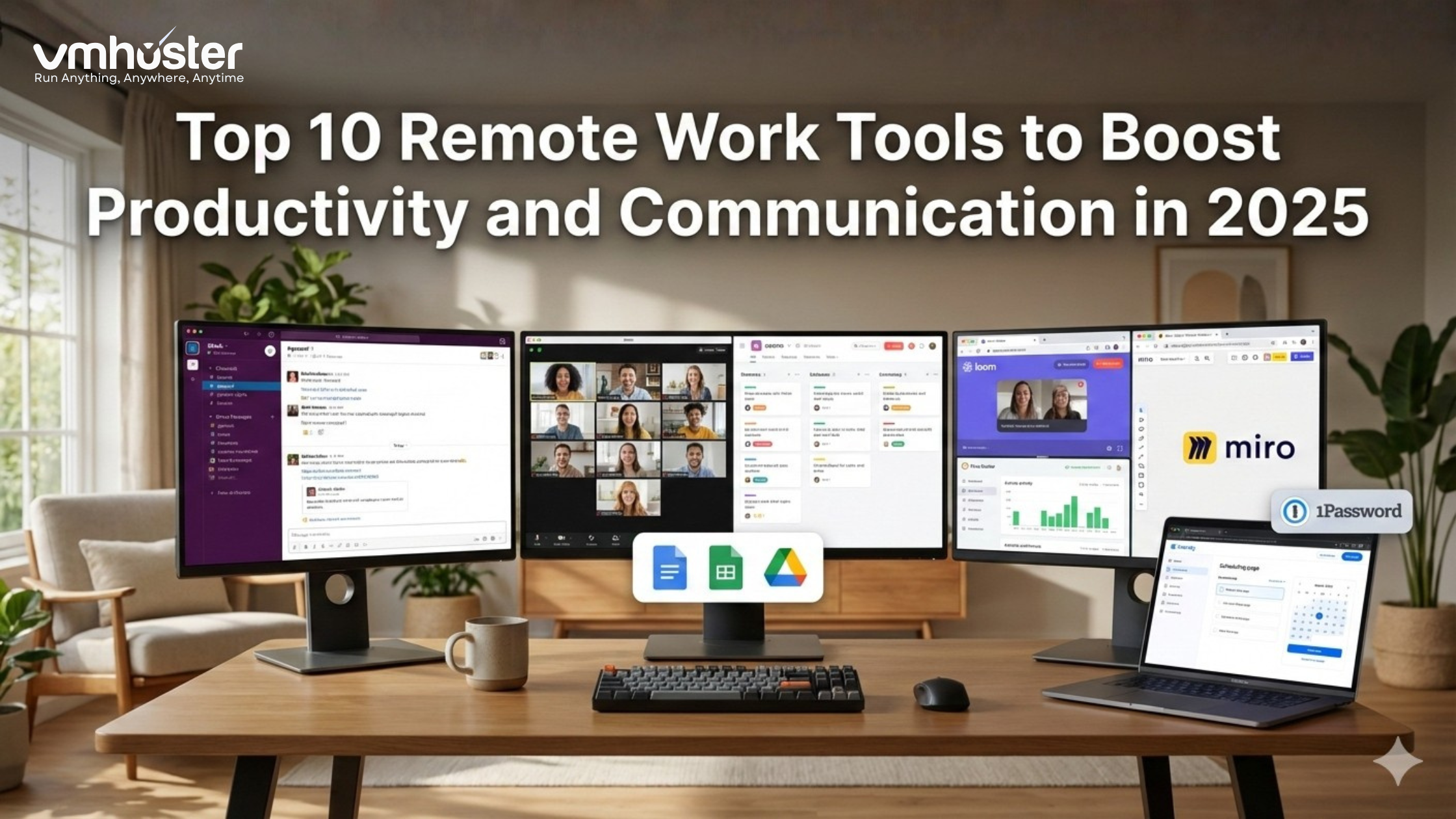
After testing dozens of platforms and speaking with remote teams at VMHoster and beyond, I’ve compiled this list of the top 10 remote work tools that genuinely make a difference. These aren’t just popular apps—they’re tools that solve real problems remote workers face daily.
Why Remote Work Tools Matter More Than Ever
The remote work landscape has evolved dramatically. According to recent studies, over 12.7% of full-time employees work from home, and 28.2% work a hybrid model. With this shift, the right tools aren’t just nice-to-haves—they’re essential for:
- Maintaining team cohesion across different time zones
- Preventing communication breakdowns that cost time and money
- Tracking progress without micromanaging
- Creating accountability in asynchronous environments
- Preserving company culture when you can’t gather in person
Let’s dive into the tools that actually deliver on these promises.
1. Slack: Your Digital Office Space
Best for: Real-time team communication and quick collaboration
I’ll be honest—when my team first adopted Slack, I thought it would just add more noise. But once we established proper channel etiquette and workflows, it became our communication backbone.
Why it works:
- Organized channels keep conversations contextual (no more digging through email threads)
- Threaded conversations prevent channel chaos
- Integrations with 2,600+ apps mean everything connects to your workflow
- Search functionality that actually finds what you need
Real-world use case: At VMHoster, our development team uses dedicated channels for each project, automatically receiving updates from GitHub, Jira, and monitoring systems. This keeps everyone informed without constant meetings.
Pro tip: Create channels for specific projects, departments, and even fun topics. We have #random for memes and #wins for celebrating team victories—it helps maintain culture remotely.
Pricing: Free plan available; Paid plans start at $7.25/month per user
Learn more: Slack Official Website
2. Zoom: Video Meetings That Actually Work
Best for: Video conferencing and virtual meetings
After suffering through choppy video calls and audio delays on various platforms, Zoom proved why it’s the industry standard. The reliability alone justifies its popularity.
Key features:
- HD video and audio quality even with larger groups
- Virtual backgrounds for privacy and professionalism
- Breakout rooms for workshop-style meetings
- Recording capabilities for those who can’t attend live
- Screen sharing with annotation for collaborative sessions
Personal experience: I host weekly team retrospectives with our distributed team across four countries. Zoom’s reliability means we’ve never had to cancel a meeting due to technical issues—something I can’t say about alternatives.
Pricing: Free for meetings up to 40 minutes; Paid plans start at $149.90/year per license
External resource: Zoom Support Center
3. Asana: Project Management Without the Headaches
Best for: Task management and project tracking
Before Asana, our team used spreadsheets, email chains, and hope. Tasks fell through cracks regularly. Asana changed that by creating a single source of truth for all projects.
What makes it powerful:
- Multiple project views (list, board, timeline, calendar) suit different work styles
- Task dependencies show what’s blocking what
- Custom fields for tracking anything specific to your workflow
- Automated workflows that move tasks based on triggers
Real scenario: When launching our new hosting infrastructure, we used Asana to coordinate between development, testing, and deployment teams. The timeline view showed dependencies clearly, preventing bottlenecks before they happened.
Pricing: Free for up to 15 team members; Premium starts at $10.99/month per user
Alternative consideration: For simpler needs, Trello offers a more visual, card-based approach that some teams prefer.
4. Google Workspace: The Complete Collaboration Suite
Best for: Document collaboration and file storage
Google Workspace (formerly G Suite) deserves its spot because it handles so many remote work needs in one ecosystem.
Core advantages:
- Real-time collaborative editing on Docs, Sheets, and Slides
- Generous cloud storage with Google Drive
- Gmail integration with professional email addresses
- Google Meet built-in for quick video calls
- Shared calendars that actually sync
Why I recommend it: When three team members need to simultaneously edit a proposal while someone else comments and another person presents it in a meeting—all happening seamlessly—you realize why this suite dominates the market.
Pricing: Business Starter at $6/month per user
For hosting environments requiring robust server infrastructure, check out VMHoster’s cloud hosting solutions that integrate perfectly with Google Workspace.
5. Loom: Async Video Communication Done Right
Best for: Recording quick video explanations and tutorials
This one’s a game-changer I wish I’d discovered sooner. Loom lets you record your screen and camera simultaneously, perfect for explaining complex issues without scheduling another meeting.
Brilliant use cases:
- Code reviews where you walk through changes visually
- Bug reports showing exactly what’s happening
- Training videos new team members can watch anytime
- Feedback on designs with visual context
My experience: Instead of writing lengthy Slack messages explaining server configurations, I now record 2-minute Loom videos. It’s faster for me to create and easier for teammates to understand. Our async communication improved dramatically.
Pricing: Free plan with 25 videos; Business plan at $12.50/month per creator
6. Notion: Your Team’s Knowledge Hub
Best for: Documentation, wikis, and knowledge management
Notion replaced about five different tools for us—internal wiki, meeting notes, project docs, and onboarding materials all live here now.
Standout features:
- Flexible database system that adapts to your needs
- Templates for everything from meeting notes to roadmaps
- Collaborative editing with comments and mentions
- Integration capabilities to pull in data from other tools
Practical application: We built our entire onboarding process in Notion. New hires get a personalized page with their first 30 days mapped out, links to relevant documentation, and checklists that ensure nothing gets missed.
Pricing: Free for individuals; Plus plan at $8/month per user
7. Time Doctor: Productivity Tracking That Respects Privacy
Best for: Time tracking and productivity analytics
I know time tracking can feel invasive, but Time Doctor strikes a good balance between accountability and privacy—crucial for building trust in remote teams.
Thoughtful features:
- Optional screenshot monitoring (we don’t use this feature)
- Website and app usage tracking to identify time drains
- Detailed time reports for project billing
- Distraction alerts that gently nudge you back on track
How we use it: Primarily for understanding project time allocation rather than monitoring individuals. It revealed we were spending 40% more time on client meetings than estimated, helping us adjust our planning.
Pricing: Basic plan at $7/month per user
Privacy note: Always be transparent with your team about monitoring policies. Trust matters more than tracking.
8. Miro: Virtual Whiteboarding for Brainstorming
Best for: Visual collaboration and brainstorming sessions
Some conversations just need a whiteboard. Miro brings that experience online without the awkwardness of other digital whiteboard tools I’ve tried.
Why teams love it:
- Infinite canvas for sprawling ideas
- Pre-built templates for workshops, retrospectives, and planning
- Real-time collaboration with cursors showing who’s where
- Integration with Zoom and other meeting platforms
Success story: Our quarterly planning sessions transformed when we moved to Miro. Everyone can contribute sticky notes simultaneously, vote on priorities, and organize ideas visually—something impossible in a Google Doc.
Pricing: Free plan available; Team plan at $8/month per user
External resource: Miro Templates Gallery
9. 1Password: Team Security Made Simple
Best for: Password management and secure credential sharing
Security often gets overlooked in remote work discussions, but it’s critical. 1Password solved our problem of securely sharing credentials across the team.
Security benefits:
- Encrypted password vault for each team member
- Secure sharing of credentials without exposing passwords
- Two-factor authentication support
- Security audit showing weak or reused passwords
Why it matters: When team members work from various locations and networks, secure credential management prevents breaches. We had a contractor’s laptop stolen—because all passwords were in 1Password with 2FA, no accounts were compromised.
Pricing: $7.99/month per user for teams
For more on remote security best practices, explore VMHoster’s guide on securing remote infrastructure.
10. Calendly: Stop the Scheduling Back-and-Forth
Best for: Meeting scheduling automation
I saved this for last because it seems simple, but Calendly eliminated one of remote work’s most annoying time-wasters: the “what time works for you?” email thread that takes three days.
Simple but powerful:
- Automatic timezone detection prevents confusion
- Availability syncing with your calendar
- Buffer times between meetings for sanity
- Custom booking pages for different meeting types
Time saved: Our sales team calculated they save 6 hours per week not playing email ping-pong for appointments. That’s 25 full days per year.
Pricing: Free basic plan; Premium at $10/month per user
Building Your Remote Work Tech Stack
Here’s the truth: you don’t need all these tools immediately. Start with the basics—communication (Slack), video conferencing (Zoom), and project management (Asana or similar). Add others as specific needs arise.
My recommended starter stack:
- Slack for communication
- Zoom for meetings
- Google Workspace for collaboration
- Asana for project management
Once these are humming, layer in specialized tools like Loom, Notion, or Miro based on your team’s pain points.
Common Mistakes to Avoid
Tool overload: I’ve seen teams adopt 15 different tools, creating more confusion than before. Each tool should solve a specific problem.
No adoption plan: Rolling out new tools without training guarantees failure. Give your team time to learn and establish best practices together.
Ignoring integration: Tools that don’t talk to each other create silos. Prioritize platforms with strong integration capabilities.
Forgetting about cost: Those $10/month per user tools add up fast. A 50-person team spending $30/user on tools means $18,000 annually.
Making Remote Work Actually Work
The best tools in the world won’t fix a dysfunctional remote culture. These platforms enable productivity and communication, but success requires:
- Clear communication norms (response time expectations, when to use which tool)
- Regular check-ins to maintain connection
- Asynchronous workflows that respect different time zones
- Trust and autonomy rather than micromanagement
For infrastructure that supports your remote tools reliably, consider VMHoster’s managed server solutions designed for distributed teams.
Conclusion
Three years into remote work, I can’t imagine going back to the chaos of my first week. The right tools transformed our distributed team from disconnected individuals into a cohesive, productive unit.
Your ideal stack will differ based on your team size, industry, and work style. Start with the fundamentals, experiment thoughtfully, and don’t be afraid to switch tools if something isn’t working.
What remote work tools have transformed your productivity? Have you found alternatives that work better for your team? The remote work landscape keeps evolving, and I’m always curious to learn what’s working for others.