When I first decided to dive into Kubernetes, I faced a dilemma that many Mac users encounter: how do you run Kubernetes efficiently on macOS without completely overhauling your development environment? After trying various solutions, I discovered that running Ubuntu through Parallels Desktop offers the perfect balance of performance and usability.
If you’re a developer working on macOS but need to deploy containerized applications on Linux environments, this guide will walk you through the entire process of setting up Kubernetes on Ubuntu running in Parallels. Trust me, it’s easier than you think, and the performance is surprisingly good.
Why Choose Parallels for Kubernetes Development?
Before we jump into the installation steps, let me explain why this setup makes sense. Unlike Docker Desktop or Minikube running natively on macOS, using Ubuntu in Parallels gives you several advantages:
- True Linux environment: You’re running Kubernetes on actual Linux, not a compatibility layer
- Better performance: Parallels offers near-native performance with Apple Silicon optimization
- Flexibility: You can snapshot your VM before major changes
- Resource control: Easy to allocate specific CPU cores and RAM to your Kubernetes cluster
I’ve been using this setup for about six months now, and it’s become my go-to environment for testing deployments before pushing to production.
Prerequisites
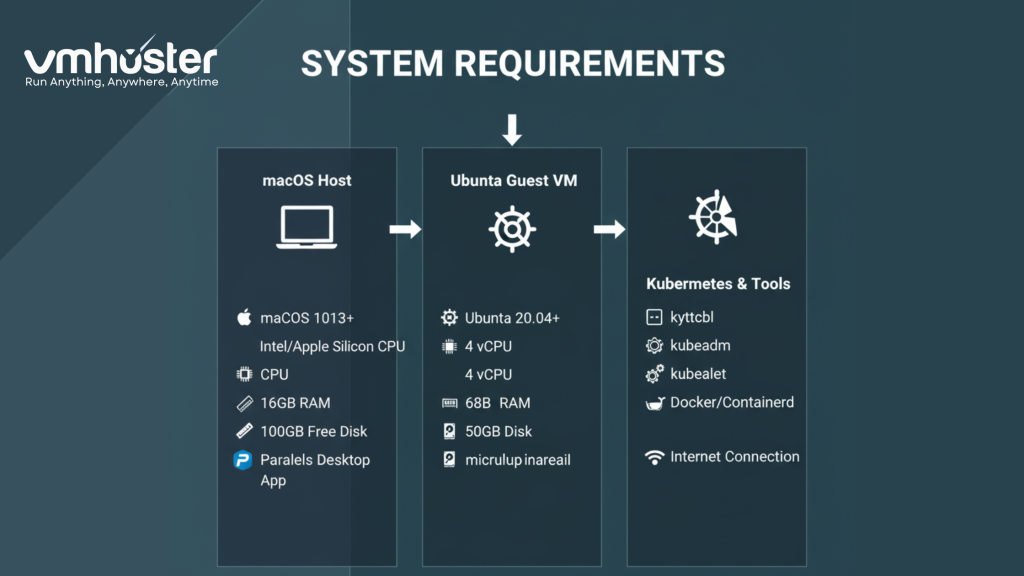
Before we begin, make sure you have:
- macOS (Monterey or later recommended)
- Parallels Desktop (version 18 or newer for best Apple Silicon support)
- At least 8GB of RAM (16GB recommended)
- 40GB of free disk space
- A stable internet connection
- Basic familiarity with terminal commands
Step 1: Setting Up Ubuntu on Parallels Desktop
Installing Ubuntu Virtual Machine
First, let’s get Ubuntu up and running. I recommend using Ubuntu 22.04 LTS because it has excellent support for Kubernetes and receives long-term updates.
- Open Parallels Desktop
- Click on the “+” icon or go to File > New
- Select “Install Windows or another OS from a DVD or image file”
- Choose “Download Ubuntu” or select your downloaded Ubuntu ISO
- Follow the installation wizard
Pro tip: When allocating resources, I suggest starting with 4 CPU cores and 8GB of RAM. You can always adjust this later based on your workload.
Configuring Ubuntu for Optimal Performance
Once Ubuntu is installed, there are a few tweaks that’ll make your life easier:
bash
# Update system packages
sudo apt update && sudo apt upgrade -y
# Install essential tools
sudo apt install curl wget git vim -y
For better integration between macOS and Ubuntu, enable Parallels Tools:
- In Parallels, click Actions > Install Parallels Tools
- Follow the on-screen instructions within Ubuntu
- Restart the VM
This gives you features like shared clipboard, drag-and-drop files between systems, and coherence mode if you want Ubuntu apps to appear as native macOS windows.
Step 2: Installing Docker (Container Runtime)
Kubernetes needs a container runtime to work with, and Docker is still the most popular choice. Here’s how I set it up:
bash
# Remove any old Docker installations
sudo apt remove docker docker-engine docker.io containerd runc
# Install prerequisites
sudo apt install apt-transport-https ca-certificates curl software-properties-common -y
# Add Docker’s official GPG key
curl -fsSL https://download.docker.com/linux/ubuntu/gpg | sudo gpg –dearmor -o /usr/share/keyrings/docker-archive-keyring.gpg
# Set up the stable repository
echo “deb [arch=$(dpkg –print-architecture) signed-by=/usr/share/keyrings/docker-archive-keyring.gpg] https://download.docker.com/linux/ubuntu $(lsb_release -cs) stable” | sudo tee /etc/apt/sources.list.d/docker.list > /dev/null
# Install Docker Engine
sudo apt update
sudo apt install docker-ce docker-ce-cli containerd.io -y
# Add your user to the docker group
sudo usermod -aG docker $USER
newgrp docker
Verify Docker is running:
bash
docker –version
docker run hello-world
Step 3: Installing Kubernetes Tools
Now comes the exciting part—installing Kubernetes! We’ll be setting up a single-node cluster using Minikube, which is perfect for development and testing.
Installing kubectl
kubectl is the command-line tool for interacting with Kubernetes clusters:
bash
# Download the latest kubectl binary
curl -LO “https://dl.k8s.io/release/$(curl -L -s https://dl.k8s.io/release/stable.txt)/bin/linux/amd64/kubectl”
# Make it executable
chmod +x kubectl
# Move it to your PATH
sudo mv kubectl /usr/local/bin/
# Verify installation
kubectl version –client
Installing Minikube
Minikube creates a local Kubernetes cluster that’s perfect for learning and development:
bash
# Download Minikube
curl -LO https://storage.googleapis.com/minikube/releases/latest/minikube-linux-amd64
# Install Minikube
sudo install minikube-linux-amd64 /usr/local/bin/minikube
# Verify installation
minikube version
Step 4: Starting Your Kubernetes Cluster
This is where everything comes together. Let’s start our first Kubernetes cluster:
bash
# Start Minikube with Docker driver
minikube start –driver=docker –cpus=4 –memory=6144
# This might take a few minutes on first run
When I first ran this command, it took about 3-4 minutes to download all the necessary images and set up the cluster. Be patient—it’s worth the wait!
To verify everything is working:
bash
# Check cluster status
minikube status
# View cluster information
kubectl cluster-info
# Check nodes
kubectl get nodes
You should see output showing your single-node cluster is running. If you see “Ready” status, congratulations—you’ve got Kubernetes running on your Mac!
Step 5: Deploying Your First Application
Let’s test our setup with a simple nginx deployment. This is always my go-to for verifying a new Kubernetes installation:
bash
# Create a deployment
kubectl create deployment nginx-test –image=nginx
# Expose it as a service
kubectl expose deployment nginx-test –type=NodePort –port=80
# Get the service URL
minikube service nginx-test –url
Open the URL in your Ubuntu browser, and you should see the nginx welcome page. Pretty cool, right?
Advanced Configuration and Tips
Enabling the Kubernetes Dashboard
The Kubernetes dashboard is incredibly useful for visualizing your cluster. Here’s how to enable it:
bash
# Enable dashboard addon
minikube addons enable dashboard
# Start the dashboard
minikube dashboard
This opens a browser window with a full graphical interface for managing your cluster. When I’m debugging issues, I find this much more intuitive than command-line tools alone.
Configuring Resource Limits
If you’re running multiple services or larger applications, you might need to adjust Minikube’s resources:
bash
# Stop Minikube
minikube stop
# Delete existing cluster
minikube delete
# Start with more resources
minikube start –driver=docker –cpus=6 –memory=8192 –disk-size=40g
Setting Up Persistent Storage
For development work, you’ll probably need persistent storage:
bash
# Enable hostpath storage addon
minikube addons enable storage-provisioner
# Verify it’s enabled
kubectl get storageclass
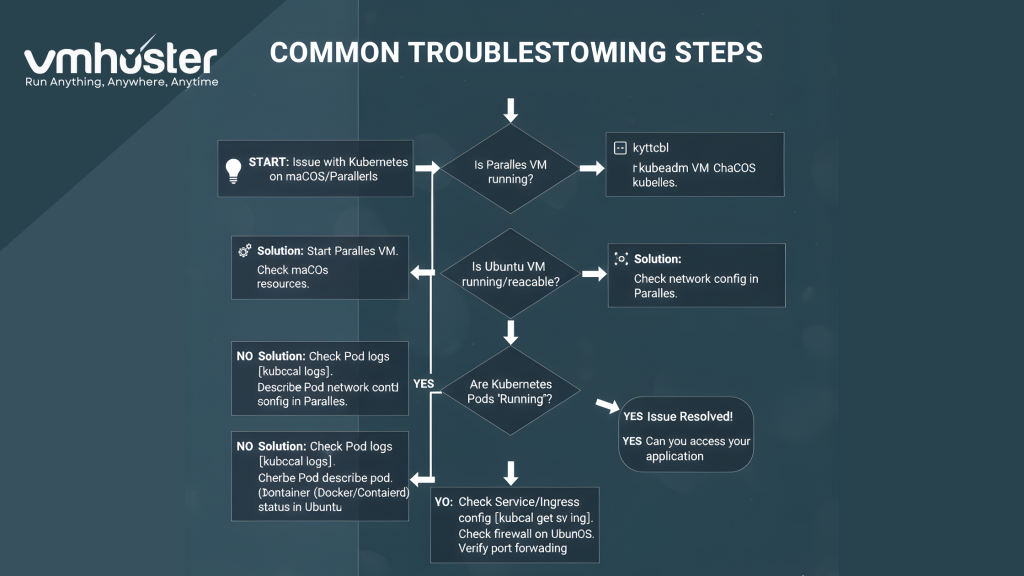
Troubleshooting Common Issues
Over the months I’ve been using this setup, I’ve encountered a few hiccups. Here are the solutions that worked for me:
Issue 1: Minikube Won’t Start
If you get errors about VT-x/AMD-v, make sure virtualization is enabled in Parallels:
- Shut down the Ubuntu VM
- Go to Configure > Hardware > CPU & Memory
- Enable “Nested Virtualization”
- Restart the VM
Issue 2: Docker Permission Denied
If you see permission errors with Docker:
bash
# Re-add user to docker group
sudo usermod -aG docker $USER
# Log out and back in, or run:
newgrp docker
Issue 3: Out of Memory Errors
If pods are getting evicted due to memory:
bash
# Check resource usage
kubectl top nodes
# Increase Minikube memory (requires restart)
minikube delete
minikube start –driver=docker –memory=10240
Performance Optimization Tips
After using this setup extensively, here are my recommendations for optimal performance:
- Allocate enough resources: Don’t skimp on RAM—Kubernetes needs breathing room
- Use SSD storage: Make sure your Parallels VM is on an SSD drive
- Enable Parallels performance mode: Go to Parallels preferences and optimize for performance
- Close unnecessary applications: Free up system resources on your Mac
- Use local image registry: Cache Docker images locally to speed up deployments
According to VMware’s virtualization best practices, proper resource allocation can improve VM performance by up to 40%. This applies to Parallels as well.
Comparing Alternatives
While I prefer this Parallels + Ubuntu setup, it’s worth mentioning alternatives:
- Docker Desktop for Mac: Easier setup but less flexible and sometimes slower
- Multipass + MicroK8s: Lightweight but requires more manual configuration
- KIND (Kubernetes in Docker): Fast but limited to single-node clusters
- Rancher Desktop: Good alternative to Docker Desktop, uses containerd
For production-like testing, Ubuntu on Parallels gives you the closest experience to real-world deployments. The Kubernetes documentation itself recommends using Linux for production environments.
Integrating with Your Development Workflow
Now that you have Kubernetes running, here’s how to integrate it into your daily workflow:
VS Code Integration
Install the Kubernetes extension for VS Code on your Mac, then configure it to connect to your Parallels Ubuntu instance. I’ve written about setting up remote development environments on VMhoster before, and the same principles apply here.
Accessing Services from macOS
To access services running in Kubernetes from your Mac’s browser:
- Use kubectl port-forward to forward ports
- Or set up Parallels networking in bridged mode
- Consider using minikube tunnel for LoadBalancer services
Continuous Integration
You can automate deployments to your local cluster using tools like:
- Skaffold for continuous development
- Helm for package management
- Kustomize for configuration management
Check out Skaffold’s documentation for examples of how to set up automatic rebuilds and deployments during development.
Security Considerations
When running Kubernetes locally, don’t forget about security basics:
bash
# Create RBAC policies
kubectl create serviceaccount dev-user
kubectl create rolebinding dev-binding –clusterrole=edit –serviceaccount=default:dev-user
# Enable audit logging
minikube start –extra-config=apiserver.audit-log-path=/var/log/audit.log
While local development is lower risk, it’s good practice to follow security principles. The CNCF’s security best practices guide offers excellent recommendations.
Monitoring Your Cluster
For monitoring, I recommend setting up these tools:
bash
# Enable metrics server
minikube addons enable metrics-server
# Check resource usage
kubectl top nodes
kubectl top pods –all-namespaces
For more advanced monitoring, you can install Prometheus and Grafana, though that’s beyond the scope of this guide. I’ll be covering that in a future post on VMhoster.
Cost Considerations
One of the best things about this setup is that it’s cost-effective:
- Parallels Desktop costs around $99/year (or $129 for Pro)
- Ubuntu is completely free
- All Kubernetes tools are open-source
- No cloud costs for development/testing
Compare this to running even a small Kubernetes cluster on AWS, GCP, or Azure, where you’d pay $50-100/month minimum. For learning and development, this local setup is unbeatable.
Keeping Your Environment Updated
Regular maintenance keeps everything running smoothly:
bash
# Update Ubuntu packages
sudo apt update && sudo apt upgrade -y
# Update Minikube
minikube update-check
# If update available, download and reinstall
# Update kubectl
# Download latest version as shown in Step 3
# Update Docker
sudo apt update
sudo apt install docker-ce docker-ce-cli containerd.io
I set a reminder to update everything once a month, which prevents compatibility issues down the road.
Next Steps and Further Learning
Now that you have Kubernetes running, here are some resources to continue your journey:
- Official Kubernetes tutorials: Start with the official basics tutorial
- Kubernetes patterns: Learn about deployment patterns and best practices
- Helm charts: Explore the Artifact Hub for pre-built applications
- Certified Kubernetes courses: Consider Linux Foundation’s CKA certification
On VMhoster, we’ve published several related guides that might interest you:
- Setting Up Multi-Node Kubernetes Clusters
- Container Orchestration Best Practices
- DevOps Workflows with Kubernetes
Conclusion
Setting up Kubernetes on macOS using Ubuntu in Parallels might seem like extra work compared to simpler solutions, but the benefits are worth it. You get a true Linux environment, excellent performance, and the flexibility to experiment without fear of breaking your production systems.
I’ve been using this exact setup for my consulting work, and it’s handled everything from microservices development to CI/CD pipeline testing. The initial setup takes about 30-45 minutes, but you’ll be working with Kubernetes exactly as it runs in production environments.
Whether you’re learning Kubernetes for the first time or you’re an experienced developer who needs a reliable local development environment, this setup won’t disappoint. Give it a try, and let me know how it works for you!
Frequently Asked Questions
Q: Can I run multiple Kubernetes clusters simultaneously? Yes! Use minikube start -p cluster-name to create multiple profiles. I run separate clusters for different projects.
Q: Will this work on Apple Silicon Macs? Absolutely. Parallels has excellent ARM64 support, and Kubernetes works perfectly on Apple Silicon.
Q: How much does this impact my Mac’s performance? With proper resource allocation, the impact is minimal. I run this daily alongside my regular development tools without issues.
Q: Can I use this for production workloads? No, this is strictly for development and testing. For production, use managed Kubernetes services or properly configured bare-metal clusters.
Have questions about this setup? Found a better way to configure something? Drop a comment below or reach out to us at VMhoster. We love hearing about your experiences with Kubernetes and virtualization!
Related Posts:
- Docker vs Kubernetes: Which Container Solution is Right for You?
- Optimizing Parallels Desktop for Development Workloads
- Setting Up a Local DevOps Pipeline on macOS
About the Author: This guide was written based on real-world experience running Kubernetes clusters for development and testing. At VMhoster, we’re passionate about helping developers create efficient virtualization and containerization workflows.