
I’ll be honest—when I first started working with MySQL databases, I didn’t think checking the version mattered much. That changed quickly when I spent two hours troubleshooting a feature that simply wasn’t available in my MySQL version. Whether you’re a seasoned DBA or just getting started with database management, knowing your MySQL version is more important than you might think.
In this comprehensive guide, I’ll walk you through multiple ways to check your MySQL version, explain why it matters, and share some insights I’ve picked up along the way.
Why Checking Your MySQL Version Actually Matters
Before we dive into the “how,” let’s talk about the “why.” Your MySQL version affects:
- Feature availability: Newer versions include window functions, common table expressions (CTEs), and JSON support that older versions lack
- Security patches: Running outdated versions can expose your database to known vulnerabilities
- Performance optimizations: Each release brings performance improvements and bug fixes
- Compatibility: Your application code might rely on specific MySQL features
- Upgrade planning: You need to know where you’re starting from before planning migrations
According to Oracle’s MySQL documentation, the version numbering follows a standard format: MAJOR.MINOR.PATCH. For example, MySQL 8.0.35 means major version 8, minor version 0, and patch level 35.
Method 1: Using the MySQL Command Line (My Go-To Method)
This is hands-down the fastest way to check your MySQL version, and it works across all operating systems.
On Linux and Mac:
Open your terminal and type:
bash
mysql --version
```

You'll see output similar to:
```
mysql  Ver 8.0.35 for Linux on x86_64 (MySQL Community Server - GPL)
On Windows:
Open Command Prompt or PowerShell and run:
cmd
mysql --versionPro tip: If you get a “command not found” error, MySQL’s bin directory isn’t in your system PATH. You’ll need to navigate to the MySQL installation directory first (usually C:\Program Files\MySQL\MySQL Server 8.0\bin on Windows or /usr/local/mysql/bin on Mac).
Method 2: Checking Version from MySQL Shell
Once you’re logged into the MySQL shell, there are several ways to get version information.
Using the STATUS Command:
First, log into MySQL:
bash
mysql -u root -pThen run:
sql
STATUS;This gives you a comprehensive overview including:
- Server version
- Protocol version
- Connection information
- Current database
- Character set details
Using the VERSION() Function:
Inside the MySQL shell, simply execute:
sql
SELECT VERSION();
```

You'll get a clean output like:
```
+-----------+
| VERSION() |
+-----------+
| 8.0.35    |
+-----------+
Checking Version Variables:
For more detailed information:
sql
SHOW VARIABLES LIKE '%version%';This displays all version-related variables, including the version of various components.
Method 3: MySQL Workbench (For the GUI Lovers)
If you prefer graphical interfaces, MySQL Workbench makes version checking incredibly simple.
- Open MySQL Workbench
- Connect to your database server
- Look at the bottom of the connection panel—the version displays right there
- Alternatively, click on “Server Status” in the left sidebar
The version information appears prominently in the Server Status section along with other useful metrics like uptime and connection count.
Method 4: Checking Version from Application Code
Sometimes you need to check the MySQL version programmatically. Here’s how to do it in different programming languages:
PHP:
php
<?php
$connection = mysqli_connect("localhost", "username", "password", "database");
$result = mysqli_query($connection, "SELECT VERSION()");
$row = mysqli_fetch_array($result);
echo "MySQL Version: " . $row[0];
?>
Python:
python
import mysql.connector

connection = mysql.connector.connect(
    host="localhost",
    user="username",
    password="password"
)

cursor = connection.cursor()
cursor.execute("SELECT VERSION()")
version = cursor.fetchone()
print(f"MySQL Version: {version[0]}")
Node.js:
javascript
const mysql = require('mysql');
const connection = mysql.createConnection({
  host: 'localhost',
  user: 'username',
  password: 'password'
});

connection.query('SELECT VERSION()', (error, results) => {
  console.log('MySQL Version:', results[0]['VERSION()']);
});
Method 5: Checking Remote MySQL Server Version
When managing remote databases (which I do frequently for clients on VPS hosting), you can check versions without logging in:
bash
mysqladmin -u root -p -h remote-server-ip versionThis command returns comprehensive server information including version, uptime, and thread statistics.
Method 6: Using phpMyAdmin
For those running web hosting environments with phpMyAdmin:
- Log into phpMyAdmin
- Look at the right side of the homepage
- The “Database server” section displays your MySQL version
The version appears immediately under “Server: MySQL” on the main dashboard.
Method 7: Checking Version in Database Configuration Files
On Linux systems, you can sometimes find version information in:
bash
cat /etc/mysql/debian_versionOr check your MySQL error log:
bash
sudo cat /var/log/mysql/error.log | grep -i version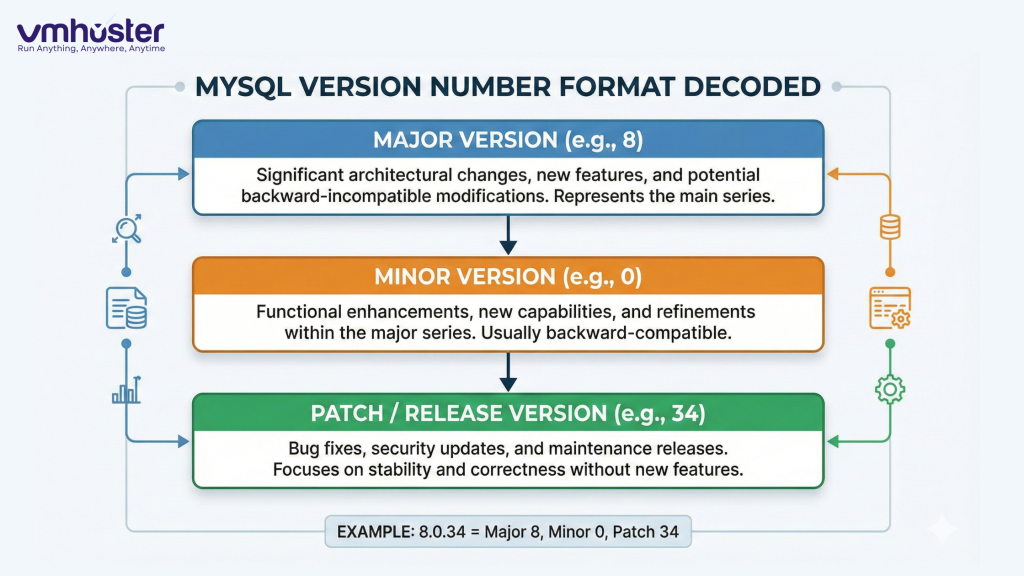
Understanding MySQL Version Numbers
MySQL follows semantic versioning with three numbers:
- Major version (8.x.x): Significant new features, potential breaking changes
- Minor version (x.0.x): New features, improvements, backward compatible
- Patch version (x.x.35): Bug fixes and security patches
You might also see labels like:
- GA (General Availability): Stable, production-ready releases
- DMR (Development Milestone Release): Preview versions
- RC (Release Candidate): Nearly ready for production
What to Do After Checking Your Version
Once you know your MySQL version, here’s what I recommend:
If You’re Running an Old Version:
- Check the official MySQL release notes to see what you’re missing
- Review security advisories for known vulnerabilities
- Plan an upgrade path—but test thoroughly in staging first
- Back up everything before any upgrade attempt
If You’re on a Recent Version:
- Stay informed about new releases through Oracle’s MySQL blog
- Subscribe to security announcements
- Test new features in development environments
- Review your monitoring setup to ensure version-specific optimizations
Common Issues and Troubleshooting
“mysql: command not found”
This means MySQL isn’t in your system PATH. Add it manually or use the full path:
bash
/usr/local/mysql/bin/mysql --versionDifferent Versions in Different Checks
If mysql --version shows a different version than SELECT VERSION(), you likely have multiple MySQL installations. The command-line client might be from a different installation than your running server.
Permission Denied Errors
Make sure you have the necessary privileges. Some version-checking methods require database connection permissions.
MySQL Version Compatibility with Popular Applications
Different applications require specific MySQL versions:
- WordPress: Minimum MySQL 5.7 (8.0+ recommended)
- Magento 2: MySQL 8.0 supported from version 2.4+
- Drupal: MySQL 5.7.8+ or 8.0+
- Laravel: MySQL 5.7+ or 8.0+
Always check your application’s documentation for specific version requirements.
Upgrading MySQL: A Quick Overview
If you’ve determined you need to upgrade, here’s the general process:
- Backup your databases using mysqldump
- Read the upgrade documentation for your specific version jump
- Test the upgrade in a staging environment
- Schedule maintenance window for production
- Perform the upgrade following official guidelines
- Verify functionality post-upgrade
Final Thoughts
Checking your MySQL version is a fundamental task that every database administrator, developer, or server manager should know how to perform. Whether you prefer command-line tools, GUI applications, or programmatic methods, there’s an approach that fits your workflow.
I’ve found that the simple mysql --version command covers 90% of my needs, but knowing the other methods comes in handy when troubleshooting or working in restricted environments.
Remember: Keeping MySQL updated isn’t just about having the latest features—it’s about security, performance, and compatibility. Make version checking part of your regular maintenance routine.
Additional Resources
- Official MySQL Documentation – Oracle’s comprehensive MySQL reference
- MySQL Release Notes – Detailed changelog for each version
- VMHoster’s MySQL Hosting Solutions – Optimized MySQL hosting environments
- Database Security Best Practices – Security guidelines from MySQL
About the Author: This guide was written by the VMHoster technical team, who manage thousands of MySQL instances across various hosting environments daily.
Need MySQL hosting? Check out VMHoster’s managed database solutions with automatic version management and expert support.