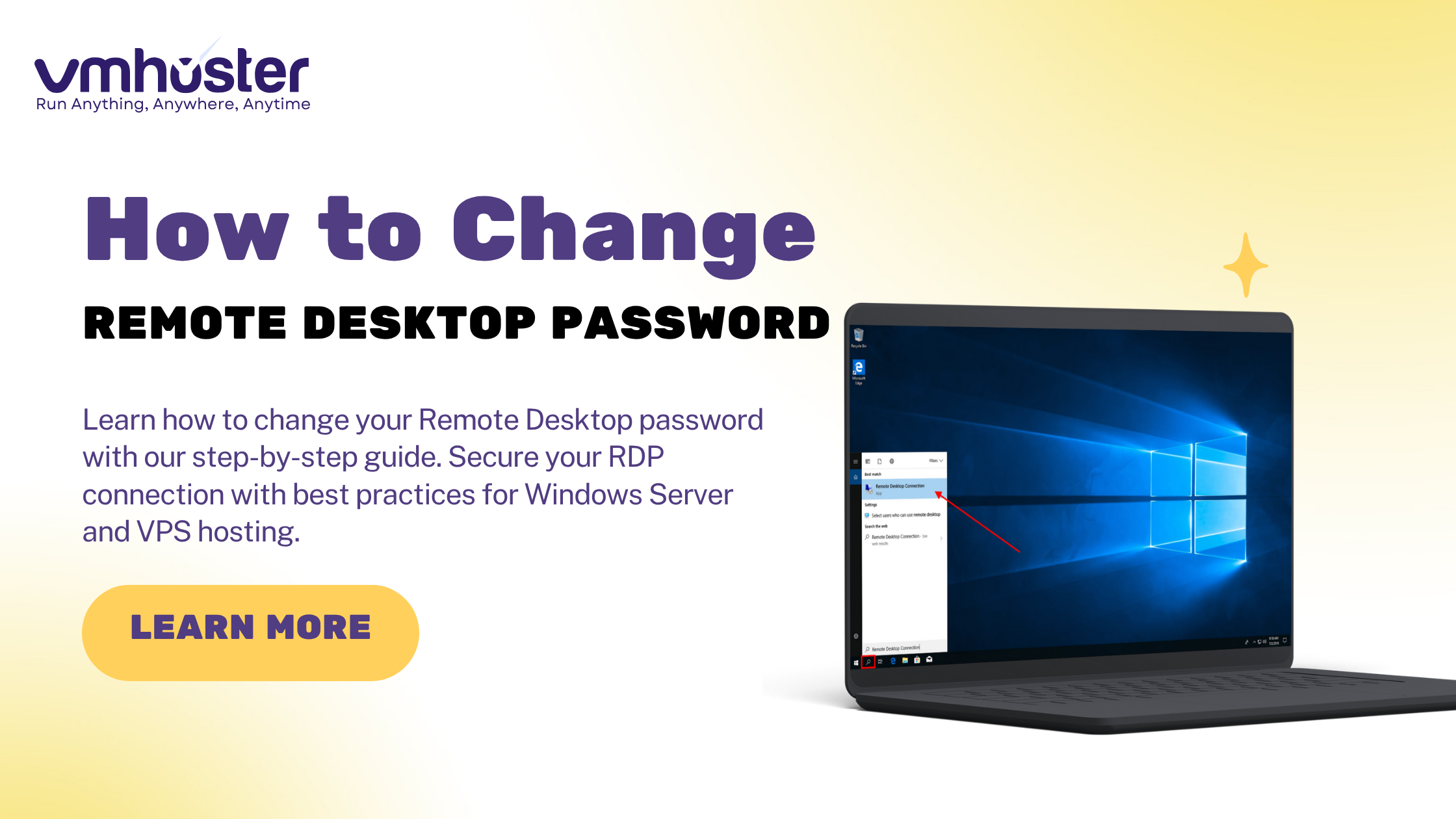
I’ll never forget the first time I locked myself out of a client’s VPS because I forgot to update the RDP password after a security audit. That moment taught me the importance of not just changing passwords regularly, but knowing exactly how to do it properly—whether you’re logged in locally or need to access your server remotely.
If you’re managing a Windows VPS or dedicated server, knowing how to change your Remote Desktop password is essential for maintaining security. Let me walk you through everything you need to know.
Why Changing Your RDP Password Matters
Remote Desktop Protocol (RDP) is one of the most targeted services by attackers. According to recent security reports, RDP attacks have increased significantly, making password management crucial for anyone running Windows servers.
When I started managing servers for my clients at VMHoster, I quickly realized that regular password updates aren’t just a best practice—they’re a necessity. Here’s why:
- Brute force attacks constantly probe RDP ports (default port 3389)
- Compromised credentials can lead to complete server takeover
- Compliance requirements often mandate regular password changes
- Former employees or contractors may retain access if passwords aren’t updated
Method 1: Change RDP Password While Connected
This is the most straightforward method when you’re already logged into your remote desktop session.
Step-by-Step Process:
- Open the Security Options Menu
- While connected via RDP, press Ctrl + Alt + End (this is the RDP equivalent of Ctrl+Alt+Delete)
- Alternatively, click the Windows Start button and select the user icon, then choose “Change account settings”
- Select “Change a Password”
- From the Windows Security screen, click on “Change a password”
- You’ll be prompted to enter your current password first
- Enter Your New Password
- Type your current password
- Enter your new password (make sure it meets complexity requirements)
- Confirm the new password by typing it again
- Click the arrow or press Enter
- Confirmation
- You should see a message confirming your password has been changed
- Click “OK” to return to your desktop
Pro Tip: I always recommend keeping a secure password manager handy. LastPass or Bitwarden work great for storing complex passwords you won’t forget.
Method 2: Change Password from Local Windows Server
If you have physical access to the server or are using a console connection (like IPMI or KVM), here’s how to change the password locally:
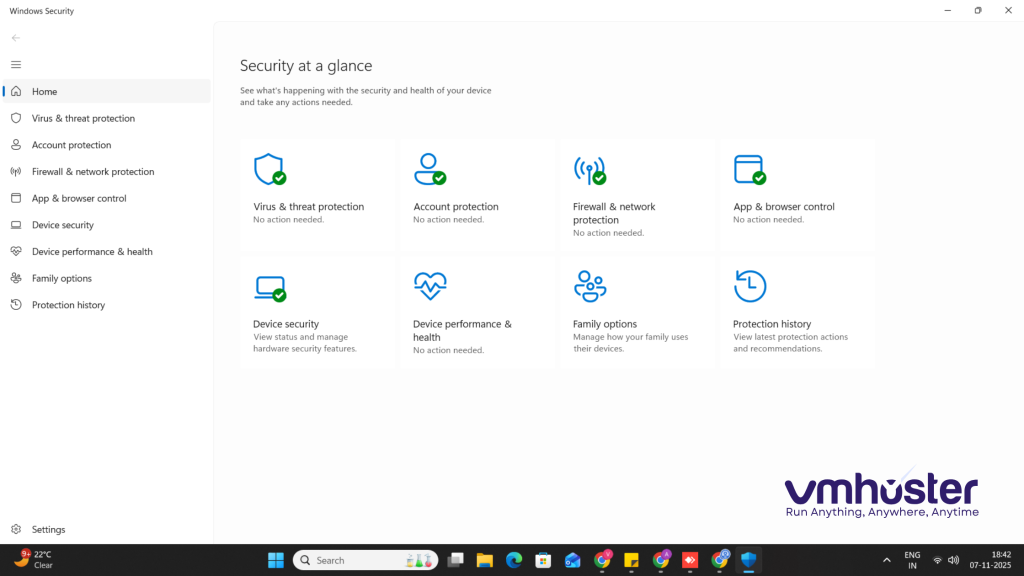
Using Windows Settings:
- Press Windows Key + I to open Settings
- Navigate to Accounts → Sign-in options
- Under “Password,” click Change
- Follow the prompts to update your password
Using Command Prompt (Advanced):
For those comfortable with command line (and honestly, it’s faster once you get used to it):
net user Administrator NewPassword123!
Replace “Administrator” with your username and “NewPassword123!” with your desired password.
Method 3: Change RDP Password Using Computer Management
This method is particularly useful for system administrators managing multiple user accounts:
- Right-click on “This PC” or “Computer” and select Manage
- Expand Local Users and Groups
- Click on Users
- Right-click on the user account you want to modify
- Select Set Password
- Enter the new password twice and click OK
Warning: Using this method will clear any stored credentials and encrypted files for that user. Always communicate password changes to affected users beforehand.
Changing RDP Password for Windows VPS Hosting
When working with VPS providers like VMHoster, you typically have a few additional options:
Through Your Hosting Control Panel:
Most hosting providers offer a control panel where you can reset your RDP password:
- Log into your VMHoster control panel
- Navigate to your VPS management section
- Look for “Reset Password” or “Change Administrator Password”
- Follow the prompts to generate or set a new password
Important Considerations for VPS Users:
When I first started managing VPS servers, I made the mistake of changing passwords without updating my saved RDP connections. Save yourself the headache—update your Remote Desktop Connection settings immediately after changing passwords:
- Open Remote Desktop Connection
- Enter your server IP
- Click “Show Options”
- Update credentials under the “General” tab
- Save the connection for future use
Password Security Best Practices
Let me share some lessons I’ve learned the hard way about RDP password security:
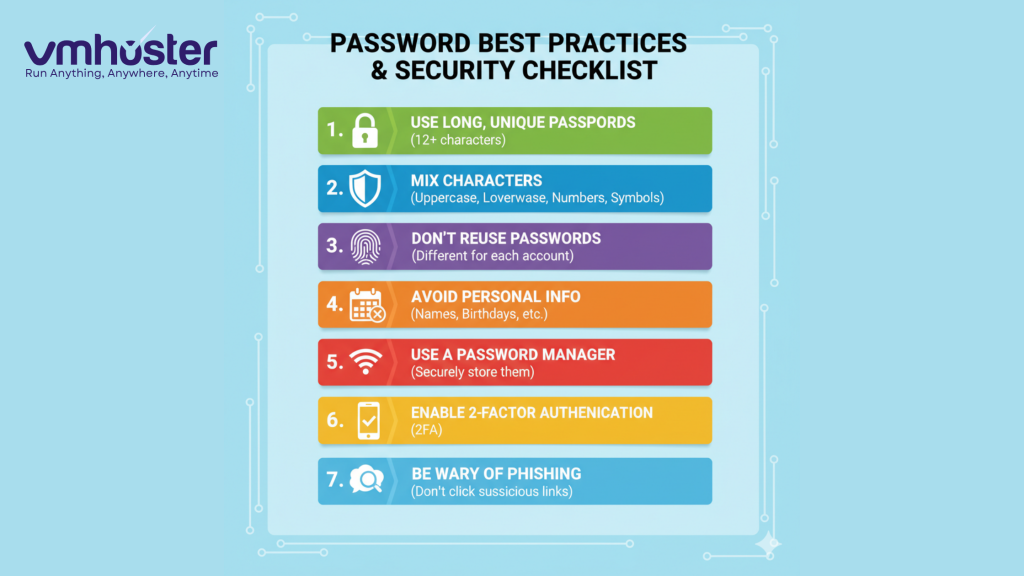
Create Strong Passwords:
- Minimum 12-15 characters
- Mix of uppercase, lowercase, numbers, and special characters
- Avoid dictionary words or personal information
- Consider using a passphrase (e.g., “Coffee@Midnight!2025”)
Additional Security Measures:
- Change the default RDP port from 3389 to something less obvious
- Enable Network Level Authentication (NLA) for an extra security layer
- Implement two-factor authentication when possible
- Use a VPN for accessing RDP from public networks
- Regular monitoring of failed login attempts through Event Viewer
How Often Should You Change Your RDP Password?
Industry standards recommend changing passwords every 60-90 days. However, if you suspect any security breach or employee turnover, change it immediately.
Troubleshooting Common Issues
“Your Password Must Meet Complexity Requirements”
Windows Server enforces complexity requirements by default. Your password must contain characters from at least three of these categories:
- Uppercase letters
- Lowercase letters
- Numbers
- Special characters (!@#$%^&*)
Can’t Connect After Changing Password
If you’re locked out after a password change:
- Wait 30 minutes—sometimes account lockout policies need time to reset
- Use your hosting provider’s console access (KVM/VNC)
- Contact your hosting provider’s support team for emergency access.
Password Change Doesn’t Sync Across Sessions
This usually happens with cached credentials. Clear them by:
- Opening Credential Manager
- Removing old credentials under “Windows Credentials”
- Re-establishing your RDP connection
Wrapping Up
Changing your RDP password regularly is one of the simplest yet most effective ways to protect your server. Whether you’re managing a single VPS or multiple dedicated servers, make password rotation part of your regular maintenance routine.
I’ve seen too many security incidents that could have been prevented with proper password management. Don’t wait for a security breach to take password security seriously—take five minutes today to update your RDP credentials and implement the best practices we’ve discussed.
Need a reliable Windows VPS with robust security features? Check out VMHoster’s Windows VPS hosting plans with built-in DDoS protection and 24/7 monitoring.
Additional Resources:
- Microsoft’s official documentation on Remote Desktop Services security
- NIST Password Guidelines (nist.gov)
- OWASP Password Storage Cheat Sheet