
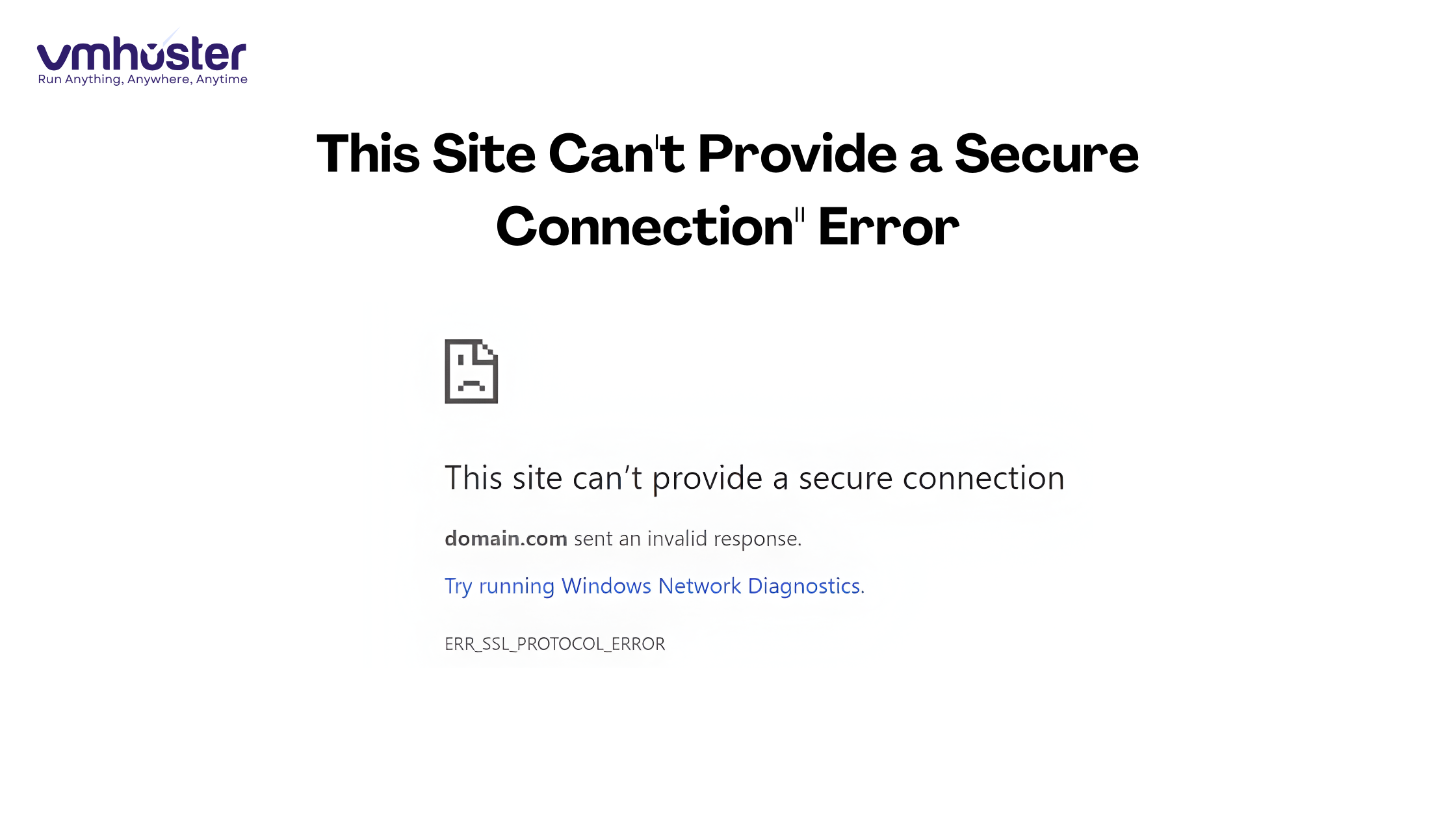
I’ll never forget the panic I felt when I first encountered this error while trying to access my website’s admin panel at 2 AM. The dreaded “This site can’t provide a secure connection” message stared back at me, and I had no idea where to start. If you’re reading this, chances are you’re experiencing the same frustration right now.
The good news? This error is more common than you think, and in most cases, it’s fixable within minutes. Whether you’re a website owner dealing with SSL issues or a visitor trying to access a site, I’ll walk you through everything you need to know.
What Does “This Site Can’t Provide a Secure Connection” Actually Mean?
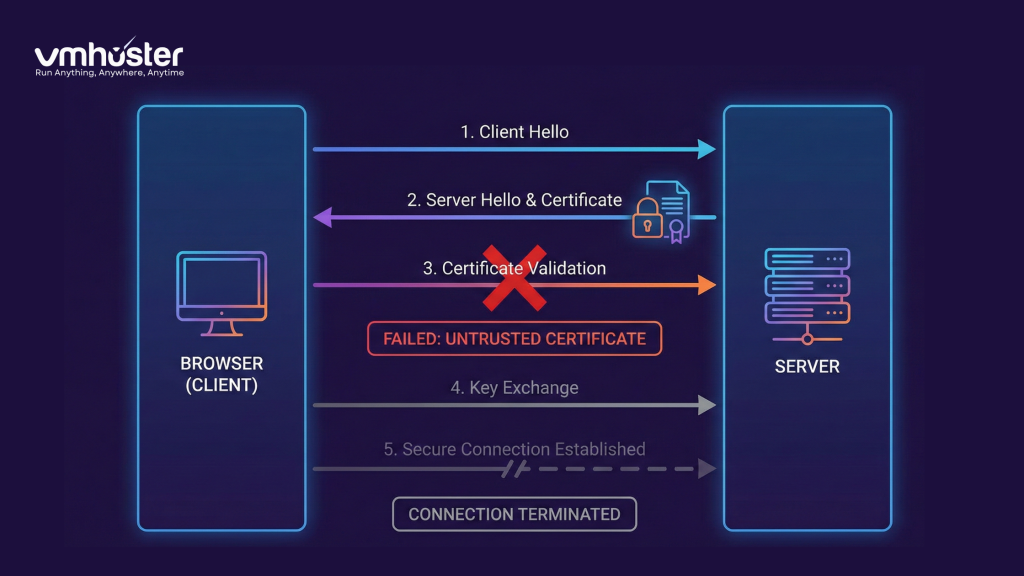
When you see this error (often accompanied by error codes like ERR_SSL_PROTOCOL_ERROR or ERR_SSL_VERSION_OR_CIPHER_MISMATCH), your browser is essentially saying: “I can’t establish a secure HTTPS connection with this website.”
Think of it like trying to have a private conversation in a room, but the door lock is broken. Your browser refuses to enter because it can’t guarantee your data will be safe.
Common Error Variations You Might See:
- Chrome: “This site can’t provide a secure connection” or “ERR_SSL_PROTOCOL_ERROR”
- Firefox: “Secure Connection Failed” or “SSL_ERROR_NO_CYPHER_OVERLAP”
- Safari: “Safari Can’t Open the Page”
- Edge: “Can’t connect securely to this page”
The underlying issue is the same across all browsers—something is preventing the SSL/TLS handshake from completing successfully.
Why Does This Error Happen? The Real Culprits
After managing hosting servers at VMHoster for years and troubleshooting countless SSL issues, I’ve seen this error stem from several sources:
1. Expired SSL Certificate
SSL certificates typically last one year. When they expire, browsers immediately flag the connection as insecure. According to SSL.com’s 2024 report, approximately 15% of all SSL errors are due to expired certificates.
2. Incorrect Server Configuration
Sometimes the server is configured to support outdated SSL/TLS protocols (like TLS 1.0 or 1.1) that modern browsers no longer trust. This is especially common on older hosting setups.
3. Mixed Content Issues
If your website loads over HTTPS but includes resources (images, scripts, stylesheets) over HTTP, browsers may block the connection entirely.
4. Antivirus or Firewall Interference
I’ve lost count of how many times antivirus software with SSL scanning features has caused this error. Programs like Avast, Kaspersky, and AVG can sometimes interfere with SSL certificates.
5. Browser Cache and Cookies
Corrupted cached data can cause browsers to misread SSL information and throw this error even when the certificate is perfectly valid.
How to Fix “This Site Can’t Provide a Secure Connection” Error
Let me walk you through the solutions that have worked for me and countless others. Start with the simplest fixes first.
Solution 1: Check Your System Date and Time
This sounds almost too simple, but you’d be surprised how often this is the culprit. SSL certificates are time-sensitive, and if your computer’s clock is wrong, certificates appear invalid.
How to fix:
- Right-click your system clock (Windows) or click the time (Mac)
- Select “Adjust date/time”
- Enable “Set time automatically”
- Restart your browser
I once spent 30 minutes troubleshooting an SSL error only to realize my laptop’s date had reset to 2019 after a BIOS update. Don’t make my mistake!
Solution 2: Clear Browser Cache and Cookies
Browsers store SSL certificate data to speed up future connections. When this data becomes corrupted, you get the secure connection error.
For Chrome:
- Press
Ctrl + Shift + Delete(Windows) orCmd + Shift + Delete(Mac) - Select “All time” from the time range
- Check “Cookies and other site data” and “Cached images and files”
- Click “Clear data”
For Firefox:
- Press
Ctrl + Shift + Delete - Select “Everything” from time range
- Check “Cookies” and “Cache”
- Click “Clear Now”
Solution 3: Disable Antivirus SSL Scanning (Temporarily)
Many antivirus programs scan SSL traffic to protect you from threats, but this can interfere with legitimate SSL connections.
Steps to test:
- Temporarily disable SSL scanning in your antivirus settings
- Try accessing the website again
- If it works, you’ll need to add an exception for that site or adjust your antivirus settings
According to research from Cybersecurity Ventures, about 8% of SSL connection errors are caused by security software interference.
Solution 4: Update Your Browser
Outdated browsers may not support newer SSL/TLS protocols. I always recommend keeping your browser updated to the latest version.
- Chrome: Settings > About Chrome (auto-updates)
- Firefox: Menu > Help > About Firefox
- Safari: Update through macOS System Updates
Solution 5: Clear SSL State (Windows Only)
Windows maintains an SSL cache that can become corrupted. Here’s how to clear it:
- Press
Windows + Rto open Run dialog - Type
inetcpl.cpland press Enter
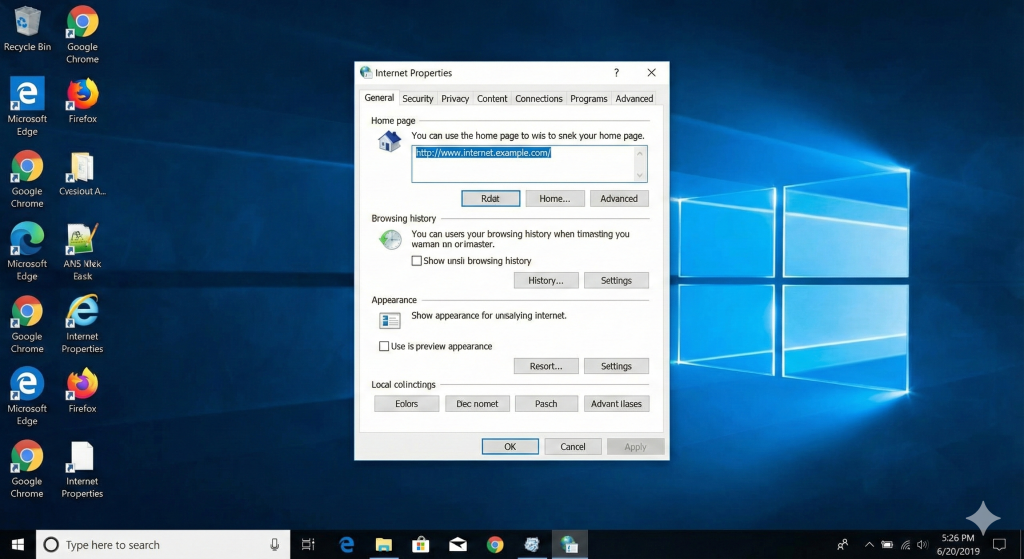
- Go to the “Content” tab
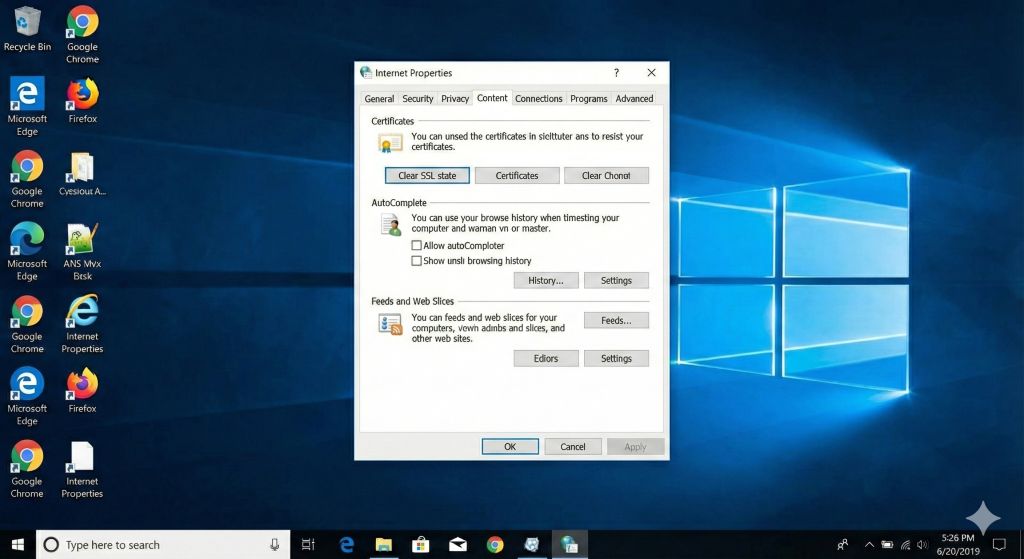
- Click “Clear SSL state”
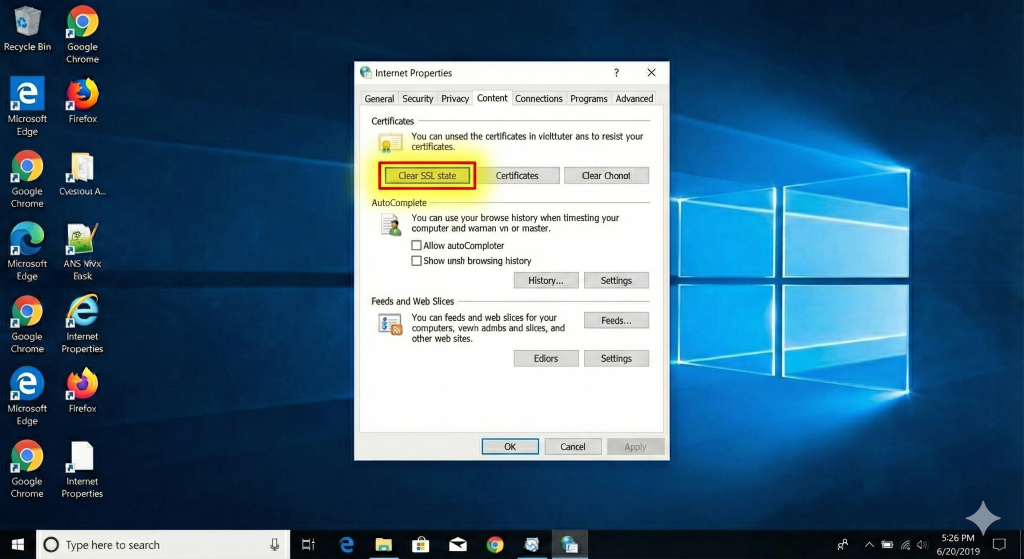
- Click “OK” and restart your browser
This fix has saved me more times than I can count, especially when dealing with corporate networks.
Solution 6: Try a Different Network
Sometimes the issue isn’t with your device but with your network. Public Wi-Fi networks, especially those with captive portals, can interfere with SSL connections.
Quick test:
- Switch from Wi-Fi to mobile data (or vice versa)
- Try accessing the site again
- If it works, the problem is network-related
I experienced this firsthand at a coffee shop where their network was blocking HTTPS connections to certain domains. Switching to my phone’s hotspot solved it instantly.
Solution 7: Flush DNS Cache
DNS cache can sometimes contain outdated information about a website’s SSL configuration.
Windows:
Open Command Prompt as Administrator
Type: ipconfig /flushdns
Press Enter
Mac:
Open Terminal
Type: sudo dscacheutil -flushcache; sudo killall -HUP mDNSResponder
Press Enter and enter your password
Linux:
sudo systemd-resolve --flush-cachesFor Website Owners: Fixing SSL Issues on Your Server
If you’re a website owner seeing this error on your own site, the problem is likely on your end. Here’s what to check:
Image Suggestion: Dashboard screenshot showing SSL certificate status in a hosting control panel (cPanel or similar)
1. Verify Your SSL Certificate Status
Log into your hosting control panel (cPanel, Plesk, or your provider’s dashboard) and check:
- Is the certificate installed correctly?
- Has it expired?
- Does it cover all necessary domains (www and non-www)?
At VMHoster, we recommend using free Let’s Encrypt certificates which auto-renew every 90 days, eliminating expiration issues.
2. Check SSL/TLS Protocol Support
Your server should support at least TLS 1.2 or TLS 1.3. Older protocols (SSL 3.0, TLS 1.0, TLS 1.1) are no longer considered secure.
You can test your server’s SSL configuration using SSL Labs’ SSL Server Test – it’s free and incredibly detailed.
3. Fix Mixed Content Warnings
Ensure all resources on your site load over HTTPS. Tools like Why No Padlock can identify mixed content issues.
Quick fix for WordPress users: Install the “Really Simple SSL” plugin, which automatically handles most mixed content issues.
4. Verify DNS Records
Make sure your domain’s DNS records point to the correct server where your SSL certificate is installed. Mismatched DNS can cause SSL errors even with a valid certificate.
5. Contact Your Hosting Provider
If you’re still stuck, reach out to your hosting provider’s support team. At VMHoster, our team handles SSL troubleshooting daily and can usually resolve issues within minutes.
Understanding SSL Certificates: Prevention is Better Than Cure
Let me share something I learned the hard way: preventing SSL errors is much easier than fixing them repeatedly.
Types of SSL Certificates:
- Domain Validated (DV): Basic encryption, quick issuance, perfect for blogs and small sites
- Organization Validated (OV): Includes business verification, better for commercial sites
- Extended Validation (EV): Highest level of validation, shows company name in address bar
For most websites, a DV certificate from Let’s Encrypt (free) or a paid provider like Sectigo works perfectly. We set up hundreds of these at VMHoster every month.
Best Practices to Avoid SSL Errors:
- Set up auto-renewal for your SSL certificates
- Use a reliable hosting provider with good SSL support
- Monitor certificate expiration with tools like SSL Labs
- Implement HSTS (HTTP Strict Transport Security) to force HTTPS
- Keep your server software updated regularly
When to Worry: Security Implications
Here’s something important that doesn’t get talked about enough: sometimes this error is actually protecting you from a real security threat.
If you encounter this error on a banking website, e-commerce site, or any platform where you enter sensitive information, do not try to bypass it. The error could indicate:
- Someone is intercepting your connection (man-in-the-middle attack)
- The website has been compromised
- Your network has been hijacked
According to the Electronic Frontier Foundation, SSL/TLS errors prevent millions of phishing attempts and data breaches annually.
Advanced Troubleshooting: For the Tech-Savvy
If you’ve tried everything above and still face issues, here are some advanced checks:
Check SSL Cipher Suites
Use OpenSSL to test the connection:
openssl s_client -connect example.com:443This shows detailed information about the SSL handshake and can reveal cipher suite mismatches.
Inspect Certificate Chain
Incomplete certificate chains are a common issue. Your certificate authority should provide:
- Your domain certificate
- Intermediate certificate(s)
- Root certificate
Use SSL Checker tools to verify the complete chain is installed.
Review Server Logs
Check your server’s error logs (usually in /var/log/apache2/error.log or /var/log/nginx/error.log on Linux) for SSL-related errors.
Real-World Case Study: How I Fixed a Client’s SSL Nightmare
Last month, a client contacted VMHoster in a panic. Their e-commerce site was showing the “secure connection” error, and they were losing sales by the minute.
Here’s what we discovered:
- Their SSL certificate was valid and properly installed
- The error only appeared for some users, not all
- The common factor? All affected users had Kaspersky antivirus
The solution: We added specific SSL configuration directives to their server to be more compatible with Kaspersky’s SSL scanning. Within 20 minutes, the issue was resolved.
This experience taught me that SSL errors often require detective work—the obvious answer isn’t always the right one.
FAQ: Quick Answers to Common Questions
Q: Is it safe to bypass this error? A: Generally, no. Only bypass if you’re absolutely certain the site is legitimate and you understand the risks.
Q: Why does this happen only on certain websites? A: Different sites have different SSL configurations. Some may use older protocols or have certificate issues that others don’t.
Q: Can I get this error on mobile devices? A: Yes, mobile browsers enforce the same SSL security standards as desktop browsers.
Q: How long does it take to fix this error? A: For visitors, usually 5-10 minutes. For website owners, it depends on the root cause—anywhere from minutes to a few hours.
Conclusion: You’ve Got This
The “This site can’t provide a secure connection” error looks intimidating, but now you have a complete toolkit to tackle it. Start with the simple fixes—check your date/time, clear your cache, and test on a different network. Nine times out of ten, one of these will solve your problem.
For website owners, keep your SSL certificates current, use reliable hosting (we’d love to have you at VMHoster), and monitor your site’s SSL health regularly.
Remember, SSL errors exist to protect you. They’re annoying when they appear incorrectly, but they’re your browser’s way of keeping you safe online.
Have you encountered this error? What solution worked for you? Drop a comment below—I read and respond to every one, and your experience might help someone else solve their SSL puzzle.
Helpful Resources and Further Reading:
- SSL Labs Server Test – Test your server’s SSL configuration
- Let’s Encrypt Documentation – Free SSL certificate authority
- Mozilla SSL Configuration Generator – Generate secure SSL configs
- VMHoster SSL Guide – Our complete SSL setup guide
- Chrome’s SSL Error Codes – Complete list of SSL errors