

Have you ever been browsing a website, managing your server, or trying to access your favorite online service when suddenly you’re hit with the dreaded message: “Your IP has been temporarily blocked”?
I remember the first time this happened to me. I was working on a client’s WordPress site late at night, making multiple login attempts because I’d forgotten which password variation I’d used. Suddenly, I was locked out completely. My heart sank—was I hacked? Did I break something?
The good news? This error is usually temporary and fixable. In this comprehensive guide, I’ll walk you through everything you need to know about IP blocking, why it happens, and most importantly, how to resolve it quickly.
What Does “Your IP Has Been Temporarily Blocked” Mean?
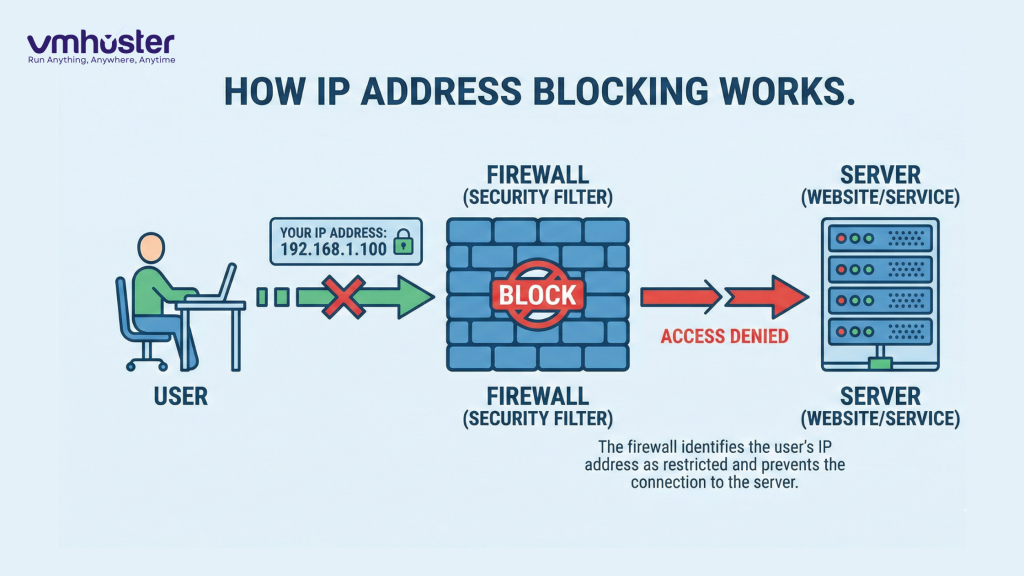
When you see this message, it means the server or website you’re trying to access has identified your IP address as potentially problematic and has temporarily restricted your access. Think of it like a bouncer at a club—they’ve noticed something unusual about your behavior and asked you to step aside for a moment.
Your IP (Internet Protocol) address is essentially your device’s unique identifier on the internet. It’s how websites know where to send information back to you. When a security system flags your IP, it’s usually trying to protect the server from malicious activities like:
- Brute force attacks (multiple failed login attempts)
- DDoS attacks (overwhelming the server with requests)
- Web scraping (automated data harvesting)
- Spam submissions
- Suspicious traffic patterns
Common Reasons Why Your IP Gets Blocked
1. Too Many Failed Login Attempts
This is probably the most common reason for temporary IP blocks. If you’re trying to log into your cPanel, WordPress admin, or any web application and you keep entering the wrong credentials, the server’s security system assumes you might be a bot trying to break in.
I learned this the hard way when I was managing multiple client websites. I’d sometimes mix up passwords and trigger the fail2ban protection on my VPS hosting. Three strikes and I was out—at least temporarily.
2. Exceeding Rate Limits
Many websites and APIs have rate limits—restrictions on how many requests you can make within a certain timeframe. If you’re:
- Refreshing a page too quickly
- Making too many API calls
- Running automated scripts without proper delays
- Using web scraping tools aggressively
You’ll likely trigger a rate limit block. This is especially common if you’re a developer working with APIs or if you’re using automated tools.
3. Shared IP Address Issues
Here’s something that catches people off guard: if you’re on shared hosting or using a VPN, someone else using the same IP address might have done something that got the entire IP range flagged. It’s like being in a car with friends, and one person misbehaves—everyone gets asked to leave.
4. Firewall and Security Plugin Triggers
Security plugins like Wordfence, Sucuri, or server-level firewalls like CSF (ConfigServer Security & Firewall) are incredibly sensitive. They might block your IP for:
- Accessing restricted URLs
- Triggering XSS (Cross-Site Scripting) detection
- Unusual user agent strings
- Geographic location (if geo-blocking is enabled)
- Patterns that match known attack signatures
5. ISP or Network Changes
Sometimes your ISP (Internet Service Provider) might assign you an IP address that was previously used by someone who abused it. Or your IP might change dynamically, and the new one is already on a blocklist somewhere.
How to Check If Your IP Is Actually Blocked
Before you start troubleshooting, confirm that your IP is indeed blocked:
- Try accessing from a different network – Use your mobile data instead of WiFi, or vice versa
- Use a VPN – Connect through a different location
- Check with another device – If the problem persists across devices on the same network, it’s likely an IP issue
- Look for specific error messages – Messages like “403 Forbidden,” “IP has been blocked,” or “Too many requests” are clear indicators
If you can access the site through a different network or VPN, your original IP is definitely blocked.
Step-by-Step Solutions to Unblock Your IP Address
Solution 1: Wait It Out (The Simplest Approach)
Most temporary IP blocks are exactly that—temporary. They usually last anywhere from 15 minutes to 24 hours. If you’re not in a rush:
- Stop trying to access the site (repeated attempts can extend the ban)
- Wait for 30 minutes to an hour
- Clear your browser cache and cookies
- Try accessing the site again
This works for about 60-70% of temporary blocks in my experience.
Solution 2: Contact Your Hosting Provider or Website Administrator
If you’re blocked from your own website or server:
- Contact your hosting provider’s support team
- Provide them with your current IP address (you can find it by Googling “what is my IP”)
- Ask them to whitelist your IP or check why it was blocked
- They can usually unblock you within minutes
For VMHoster customers, you can submit a support ticket through your client area, and the team typically responds quickly with IP unblocking assistance.
Solution 3: Access Your Server via Alternative Methods
If you’re blocked from SSH or cPanel access, try these alternatives:
For cPanel/WHM Users:
- Use your hosting provider’s emergency console access
- Access through your hosting control panel’s web-based terminal
- Contact support to temporarily disable fail2ban
For VPS/Dedicated Server Users:
- Use KVM console access (available through most hosting control panels)
- Access via IPMI if available
- Use out-of-band management tools
Once you’re in, you can unblock your IP manually through the firewall settings.
Solution 7: Whitelist Your IP Address Permanently
If you regularly access your server from specific locations (home, office), add these IPs to your permanent whitelist:
In cPanel:
- Log into cPanel
- Navigate to Security > IP Blocker
- Add your IP to the whitelist
In WordPress (using Wordfence):
- Go to Wordfence > All Options
- Scroll to “Whitelisted IP addresses that bypass all rules”
- Add your IP address
In CSF:
- Edit
/etc/csf/csf.allow - Add your IP address
- Restart CSF:
csf -r
Preventing Future IP Blocks
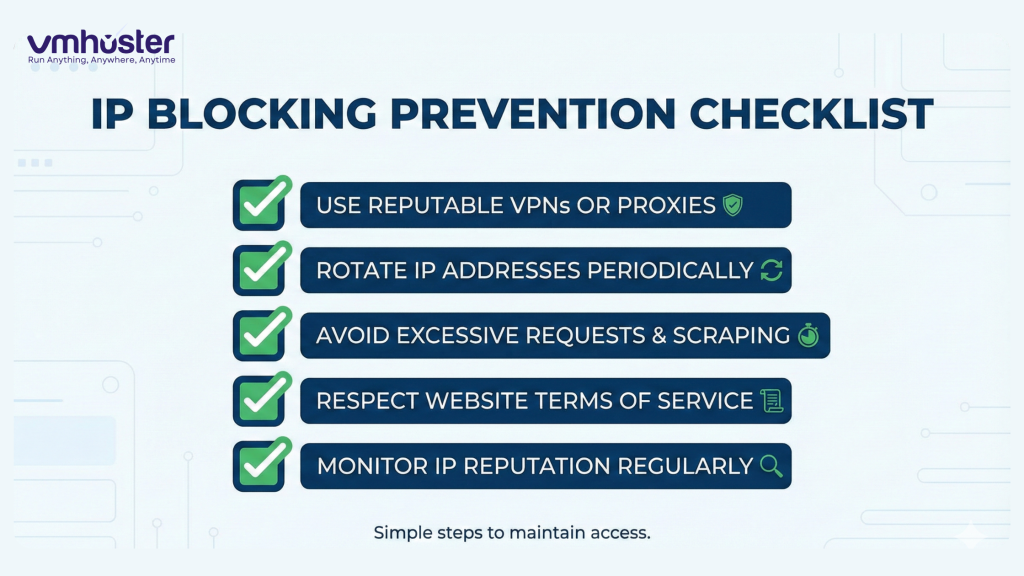
Based on my years of managing web servers, here are the most effective prevention strategies:
1. Use a Password Manager
Stop relying on memory for passwords. I use password managers like Bitwarden or 1Password, which eliminate failed login attempts—the number one cause of IP blocks.
2. Implement IP Whitelisting for Administrative Access
For your own websites and servers, restrict admin access to known IP addresses. Yes, this requires updating when your IP changes, but it dramatically improves security.
3. Use Two-Factor Authentication (2FA)
2FA adds an extra layer of security and often makes security systems less aggressive about blocking IPs after failed attempts.
4. Respect Rate Limits
If you’re working with APIs or running automated scripts:
- Read the API documentation for rate limits
- Implement proper delays between requests
- Use exponential backoff for retries
- Cache responses when possible
5. Configure Your Security Tools Properly
Don’t just install security plugins and leave them on default settings. Take time to:
- Whitelist your regular IP addresses
- Adjust sensitivity levels based on your needs
- Set up email notifications for blocks
- Review logs periodically
6. Keep Your Software Updated
Outdated software can trigger false positives in security systems. Regularly update:
- Your CMS (WordPress, Joomla, etc.)
- Server software (Apache, Nginx, PHP)
- Security plugins and firewalls
- SSL certificates
Understanding Different Types of Blocks
Not all IP blocks are created equal. Here’s what you might encounter:
Temporary Blocks
- Duration: 15 minutes to 24 hours
- Cause: Failed logins, rate limiting, suspicious activity
- Solution: Wait it out or contact support
Permanent Blocks
- Duration: Indefinite until manually removed
- Cause: Severe violations, manual administrator action
- Solution: Must contact administrator or hosting provider
Range Blocks
- Duration: Varies
- Cause: Entire IP ranges blocked due to spam or abuse patterns
- Solution: Use a different network or contact administrator
Geographic Blocks
- Duration: Permanent unless reconfigured
- Cause: Location-based restrictions
- Solution: VPN or contact site owner for exception
Special Cases: Platform-Specific Issues
WordPress IP Blocks
WordPress sites often use security plugins that are particularly aggressive. If you’re blocked from a WordPress site:
- Check if you can access other parts of the site (not just wp-admin)
- Review your Wordfence, Sucuri, or iThemes Security settings
- Access your site via FTP and temporarily rename the security plugin folder
- Log in and reconfigure the security settings
- Reactivate the plugin
cPanel/WHM Blocks
cPanel servers typically use CSF and fail2ban. For these blocks:
- Try accessing WHM if you’re blocked from cPanel (different ports)
- Use your hosting provider’s control panel to access KVM console
- Check
/var/log/messagesand/var/log/securefor block reasons - Modify CSF configuration to whitelist your IP
SSH Connection Blocks
If you’re blocked from SSH:
- Check if you can access via SFTP (might use different rules)
- Use your hosting control panel’s web terminal
- Review
/var/log/auth.logor/var/log/securefor failed attempts - Ensure you’re using the correct SSH key or password
When to Seek Professional Help
Sometimes, you need expert assistance. Contact your hosting provider or a server administrator if:
- The block persists for more than 48 hours
- You can’t access your server through any method
- You suspect your account has been compromised
- Multiple IPs are being blocked systematically
- You’re experiencing business-critical downtime
VMHoster offers 24/7 support for all hosting customers, with specialized assistance for IP blocking issues. Their team can quickly identify the cause and implement solutions.
Tools and Resources for Troubleshooting
Here are some helpful tools I regularly use:
IP Information Tools
- WhatIsMyIPAddress.com – Check your current IP and its reputation
- MXToolbox Blacklist Check – See if your IP is on any major blocklists
- IPVoid – Comprehensive IP reputation checker
Server Log Analyzers
- GoAccess – Real-time web log analyzer
- AWStats – Advanced web statistics
- Fail2ban-client – Monitor fail2ban status and actions
Security Scanners
- Sucuri SiteCheck – Free website security scanner
- Qualys SSL Labs – Test your SSL/TLS configuration
- Security Headers – Check your security headers
Real-World Example: A Case Study
Let me share a real situation I dealt with last month. A client called me in a panic—they couldn’t access their WooCommerce admin panel, and orders were piling up. The error? “Your IP has been temporarily blocked.”
Here’s what we discovered:
- They’d recently switched to a new internet provider
- Their new IP was on a spam blacklist (previous user abused it)
- Their Wordfence plugin had geo-blocking enabled
- Their IP range was partially blocked due to the previous user’s activities
The solution:
- I accessed their site via VPN
- Whitelisted their new IP address in Wordfence
- Submitted a delisting request to the blacklist (took 48 hours)
- Adjusted their security settings to be less aggressive for their IP range
- Set up email notifications for future blocks
The entire process took about 2 hours, and they’ve had zero issues since.
Frequently Asked Questions
How long do IP blocks typically last? Most temporary blocks last between 15 minutes and 24 hours. Some aggressive security systems might block for up to 7 days, but this is rare.
Can I prevent IP blocks entirely? While you can’t prevent them 100%, you can minimize the risk by whitelisting your IPs, using strong passwords, enabling 2FA, and being mindful of rate limits.
Will using a VPN solve my problem permanently? VPNs provide temporary access but aren’t a permanent solution. You should identify and fix the underlying cause of the block.
Is my website hacked if I’m seeing IP blocks? Not necessarily. IP blocks are often preventive measures. However, if you notice unusual blocking patterns or can’t identify the cause, investigate further for potential security issues.
Conclusion
Getting hit with a “your IP has been temporarily blocked” message is frustrating, especially when you’re trying to get work done or access important resources. But as you’ve learned, it’s usually a security feature working as intended—not a major crisis.
The key takeaways:
- Stay calm – Most blocks are temporary and easily resolved
- Identify the cause – Understanding why you were blocked prevents future issues
- Use the right solution – Different block types require different approaches
- Implement prevention – Whitelist your IPs and configure security properly
- Keep documentation – Note your IP addresses and access methods
Whether you’re managing your own VPS, working with shared hosting, or accessing client websites, understanding IP blocking helps you work more efficiently and troubleshoot faster.
Have you experienced IP blocking issues? What solutions worked for you? Drop a comment below—I’d love to hear your experiences and help troubleshoot any current issues you’re facing.
Need reliable hosting with responsive support for IP-related issues? Check out VMHoster’s VPS hosting plans with 24/7 expert support and robust security features that balance protection with accessibility.