

I’ll never forget the first time I encountered SQL Server Error 18456. It was a Monday morning, I had my coffee ready, and I was about to deploy a critical database update. Then boom—”Login failed for user.” My heart sank. If you’re reading this, chances are you’re in a similar situation right now, staring at that frustrating error message.
The good news? Error 18456 is one of the most common SQL Server authentication errors, and it’s almost always fixable. Over the years, I’ve dealt with this error dozens of times across different environments—from local development machines to production servers—and I’ve learned that understanding why it happens is half the battle.
In this comprehensive guide, I’ll walk you through everything you need to know about SQL Server Error 18456, including what causes it, how to diagnose it properly, and most importantly, how to fix it for good.
What is SQL Server Error 18456?
Error 18456 is SQL Server’s way of telling you that something went wrong during the login authentication process. The full error message typically looks like this:
Login failed for user 'username'. (Microsoft SQL Server, Error: 18456)At its core, this error means SQL Server received your login request but couldn’t authenticate you for various reasons. Think of it like trying to enter a building—you got to the door, but your key card didn’t work. The question is: why?
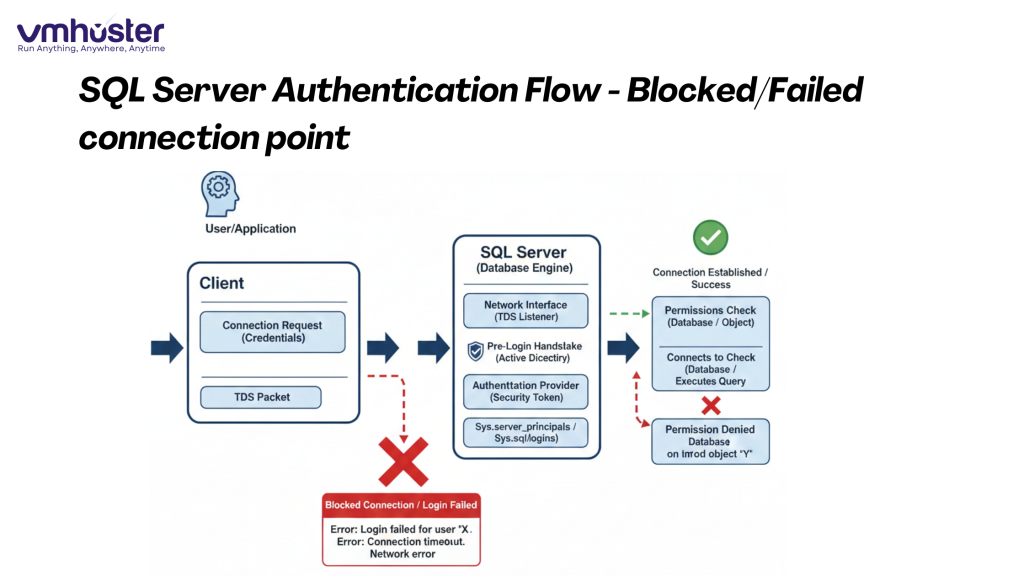
Understanding Authentication in SQL Server
SQL Server supports two authentication modes:
- Windows Authentication (uses your Windows credentials)
- SQL Server Authentication (uses username and password stored in SQL Server)
Error 18456 can occur with either mode, but the underlying causes often differ. This is important because your troubleshooting approach needs to match your authentication type.
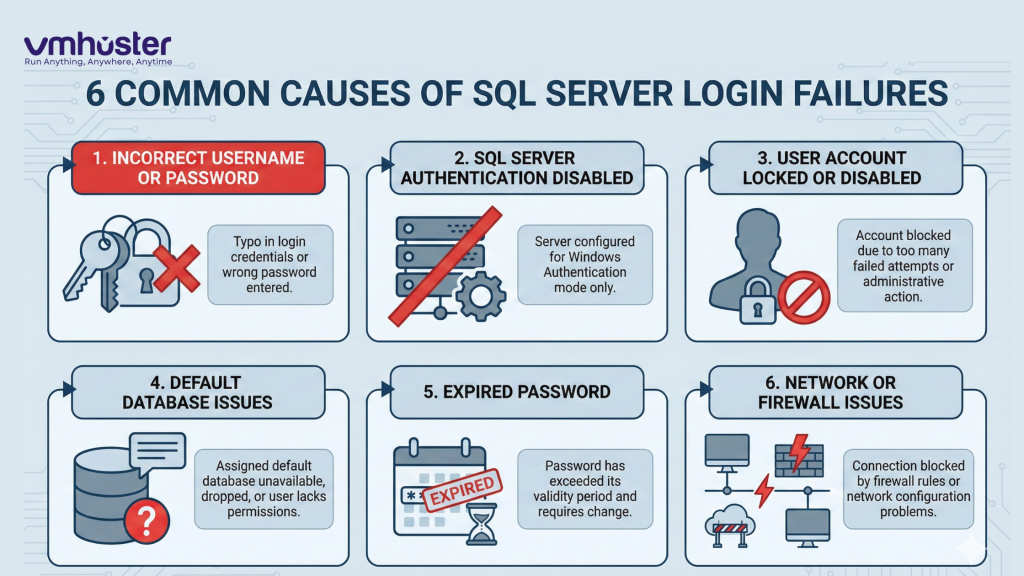
Common Causes of Error 18456 SQL Server
Before we dive into solutions, let’s identify the most common culprits. In my experience, about 80% of Error 18456 cases fall into these categories:
1. Incorrect Username or Password
This is the most obvious one, but you’d be surprised how often it happens. Maybe there’s a typo, or perhaps someone changed the password and forgot to update the connection string. I once spent 30 minutes troubleshooting only to realize I had caps lock on.
2. SQL Server Authentication Disabled
If you’re trying to use SQL Server authentication (with a username like ‘sa’ or a custom SQL login), but the server is configured for Windows Authentication only, you’ll get Error 18456 every time.
3. User Account Locked or Disabled
Database administrators sometimes disable accounts for security reasons or during maintenance. If your account is disabled in SQL Server, you’re locked out until an admin re-enables it.
4. Default Database Issues
Here’s a tricky one: your login might be valid, but if the default database assigned to your account doesn’t exist or you don’t have access to it, SQL Server will reject your login attempt.
5. Expired Password
SQL Server can enforce password policies. If your SQL login password has expired, you’ll encounter this error until you reset it.
6. Network or Firewall Issues
Sometimes the problem isn’t with SQL Server itself but with the network path to it. Firewalls blocking port 1433 (SQL Server’s default port) can result in connection failures that manifest as Error 18456.
Understanding Error State Codes
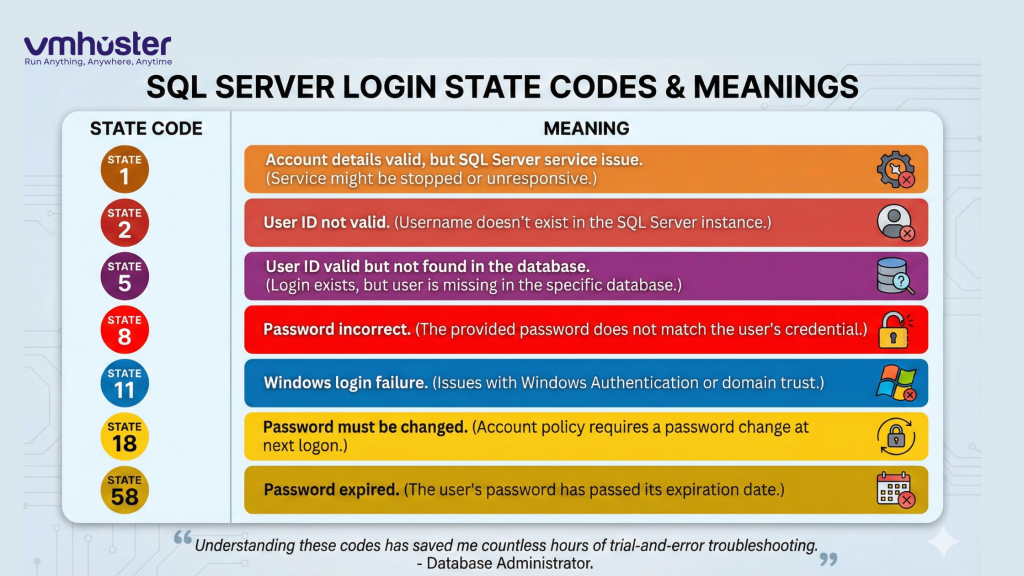
Here’s something that took me years to fully appreciate: Error 18456 actually comes with state codes that tell you exactly what went wrong. The catch is that these state codes are only visible in the SQL Server error logs, not in the error message you see on your screen.
To view the state code:
- Open SQL Server Management Studio (SSMS)
- Connect to your server (if you have admin access)
- Navigate to Management > SQL Server Logs
- Look for entries containing “Error: 18456”
You’ll see something like: “Login failed for user ‘testuser’. Reason: Password did not match that for the login provided. [CLIENT: 192.168.1.100] State: 8”
Key State Codes and Their Meanings
- State 1: Account details valid, but SQL Server service issue
- State 2: User ID not valid (username doesn’t exist)
- State 5: User ID valid but not found in the database
- State 8: Password incorrect
- State 11: Windows login failure
- State 18: Password must be changed
- State 58: Password expired
Understanding these codes has saved me countless hours of trial-and-error troubleshooting.
Step-by-Step Solutions to Fix Login Failed for User in SQL Server
Now let’s get to the solutions. I’ll walk you through each fix methodically, starting with the simplest checks.
Solution 1: Verify Your Credentials
I know this sounds basic, but start here:
- Double-check your username for typos
- Verify your password (consider copying from a password manager)
- Check if caps lock is on
- Try logging in with a different tool (SSMS, Azure Data Studio, or sqlcmd)
If you’re using a connection string, print it out or log it (minus the password) to verify the format is correct.
Solution 2: Enable SQL Server Authentication
If you’re trying to use SQL Server authentication but it’s not enabled:
- Open SQL Server Management Studio
- Right-click on your server name and select Properties
- Go to the Security page
- Under “Server authentication,” select SQL Server and Windows Authentication mode
- Click OK
- Restart SQL Server service (this is crucial—changes don’t take effect until restart)
To restart the service:
- Open SQL Server Configuration Manager
- Find your SQL Server instance under SQL Server Services
- Right-click and select Restart
Solution 3: Check if the Login Exists and is Enabled
Connect to SQL Server with an admin account and run:
sql
-- Check if login exists
SELECT name, is_disabled, create_date, modify_date
FROM sys.server_principals
WHERE name = 'your_username';

-- If login is disabled, enable it
ALTER LOGIN [your_username] ENABLE;
When I worked on a financial services project, we discovered that automated security scripts were disabling test accounts nightly. Once we identified this pattern, we added those accounts to an exception list.
Solution 4: Reset the Password
If you suspect password issues:
sql
-- For SQL Server logins
ALTER LOGIN [your_username] WITH PASSWORD = 'NewSecureP@ssw0rd';

-- If password has expired
ALTER LOGIN [your_username] WITH PASSWORD = 'NewSecureP@ssw0rd' UNLOCK,
CHECK_POLICY = OFF, CHECK_EXPIRATION = OFF;Important: In production environments, always follow your organization’s password policies. The CHECK_POLICY and CHECK_EXPIRATION options should align with security requirements.
Solution 5: Fix Default Database Issues
This one has bitten me more times than I’d like to admit:
sql
-- Check current default database
SELECT name, default_database_name
FROM sys.server_principals
WHERE name = 'your_username';

-- Change default database to master (which always exists)
ALTER LOGIN [your_username] WITH DEFAULT_DATABASE = [master];
The scenario usually goes like this: someone creates a login with a specific database as default, then later that database gets deleted or renamed. The login still exists, but SQL Server can’t connect you to a non-existent default database.
Solution 6: Grant Necessary Permissions
Even if your login works, you need proper permissions:
sql
-- Grant database access
USE [YourDatabase];
CREATE USER [your_username] FOR LOGIN [your_username];

-- Grant basic permissions
ALTER ROLE db_datareader ADD MEMBER [your_username];
ALTER ROLE db_datawriter ADD MEMBER [your_username];
```

For more granular permission management, check out [Microsoft's official documentation on database-level roles](https://learn.microsoft.com/en-us/sql/relational-databases/security/authentication-access/database-level-roles).

### Solution 7: Check Firewall and Network Configuration

If you're connecting remotely:

1. Verify SQL Server is configured to allow remote connections
2. Ensure port 1433 (or your custom port) is open in Windows Firewall
3. Check that SQL Server Browser service is running for named instances

To enable remote connections:
- Open **SQL Server Configuration Manager**
- Expand **SQL Server Network Configuration**
- Click **Protocols for [your instance]**
- Enable **TCP/IP**
- Restart SQL Server service

For VMware-hosted SQL Server instances (relevant for VMHoster users), also verify that VM network settings aren't blocking database ports. You can learn more about [optimizing SQL Server on virtual machines](https://www.vmhoster.com) for better performance and connectivity.

---

## Advanced Troubleshooting Techniques

Sometimes the standard solutions don't work. Here's what I do when facing stubborn cases:

### Using SQL Server Profiler

SQL Server Profiler can capture authentication attempts in real-time:

1. Open **SQL Server Profiler**
2. Create a new trace
3. Add the **Audit Login Failed** event
4. Start the trace and attempt to connect
5. Review the captured events for detailed error information

### Checking Windows Event Logs

Windows Event Viewer often contains additional context:

1. Open **Event Viewer**
2. Navigate to **Windows Logs > Application**
3. Filter by source: **MSSQLSERVER**
4. Look for error entries around your connection attempt time

### Connection String Debugging

When working with applications, connection string issues are surprisingly common. Here's a proper format:
```
Server=myServerAddress;Database=myDataBase;User Id=myUsername;Password=myPassword;
```

For Windows Authentication:
```
Server=myServerAddress;Database=myDataBase;Trusted_Connection=True;
I always recommend testing connection strings with a simple console application or LinqPad before deploying to production.
Preventing Future Error 18456 Issues
Prevention is better than cure. Here’s what I’ve learned about avoiding this error:
Implement Proper Password Management
- Use a password manager for SQL credentials
- Document password expiration policies
- Set up alerts for expiring passwords
- Consider using Windows Authentication where possible (it’s more secure and eliminates password management)
Regular Security Audits
Run monthly checks to identify:
- Disabled or locked accounts
- Orphaned logins (logins without database users)
- Accounts with default database issues
Here’s a query I run regularly:
sql
-- Find logins with potential issues
SELECT
    sp.name AS LoginName,
    sp.is_disabled,
    sp.default_database_name,
    CASE WHEN DB_ID(sp.default_database_name) IS NULL
         THEN 'Default DB Missing'
         ELSE 'OK'
    END AS DefaultDBStatus
FROM sys.server_principals sp
WHERE sp.type IN ('S', 'U') -- SQL and Windows logins
ORDER BY sp.name;
Documentation and Change Management
I can’t stress this enough: document your SQL Server logins, their purposes, and their owners. When someone leaves the team or a project ends, you’ll know which accounts can be safely disabled.
Real-World Case Studies
Let me share a couple of scenarios I’ve encountered that might help you:
Case Study 1: The Migrated Database
We migrated a database from one server to another. Everything seemed fine until applications started throwing Error 18456. The problem? The logins existed on the old server but not the new one. We had to recreate them and map them to database users.
The lesson: Always script out logins (with passwords encrypted) during migrations using:
sql
sp_help_revloginThis stored procedure generates scripts to recreate logins on a new server.
Case Study 2: The Containerized SQL Server
A development team was running SQL Server in Docker containers. Every time they recreated the container, Error 18456 appeared. The issue was that SQL logins weren’t persisting. Solution? They had to initialize the container with environment variables for SA password and use initialization scripts for other logins.
Tools and Resources
Here are some tools that have made my life easier when dealing with SQL Server authentication:
Essential Tools:
- SQL Server Management Studio (SSMS): The primary management tool
- Azure Data Studio: Modern, cross-platform alternative
- SQL Server Configuration Manager: For service and network configuration
- DBATools PowerShell module: Automation for common DBA tasks
Helpful External Resources:
- Microsoft SQL Server Documentation
- SQL Server Central – Community forums and articles
- Brent Ozar’s Blog – Expert SQL Server advice
- Stack Overflow SQL Server Tag – Community troubleshooting
For those running SQL Server on virtual infrastructure, VMHoster’s cloud solutions provide optimized hosting environments with proper network configuration for database servers.
When to Contact Support
Sometimes you need professional help. Contact your DBA or Microsoft support if:
- You’ve exhausted all troubleshooting steps
- The error persists across multiple accounts
- You suspect server-level corruption
- The error started after a Windows or SQL Server update
- You’re dealing with production systems and can’t risk experimentation
Don’t hesitate to reach out. I’ve learned more from escalated issues than from ones I solved quickly.
Conclusion
SQL Server Error 18456 can be frustrating, but it’s rarely unsolvable. In most cases, it comes down to one of these issues: incorrect credentials, authentication mode misconfiguration, disabled accounts, or default database problems. By working through the solutions systematically and understanding the error state codes, you’ll be able to diagnose and fix the problem efficiently.
Remember, the key is to:
- Check the SQL Server error logs for the specific state code
- Verify authentication mode matches your login type
- Ensure the login exists and is enabled
- Confirm default database exists and is accessible
- Check network and firewall configurations for remote connections
Over time, you’ll develop an instinct for what’s wrong based on the circumstances. Until then, bookmark this guide and refer back to it when Error 18456 strikes again.
Have you encountered a unique Error 18456 scenario not covered here? Drop a comment below—I’d love to hear about it and potentially add it to this guide!
About the Author: This guide is based on years of hands-on experience managing SQL Server instances across development, staging, and production environments. For more database administration tips and cloud hosting solutions, visit VMHoster.